Go back

Setup and installation of 'OpenClaw: AI Agent Automation Stack' on GCP

This section describes how to provision and connect to ‘OpenClaw: AI Agent Automation Stack’ VM solution on GCP.

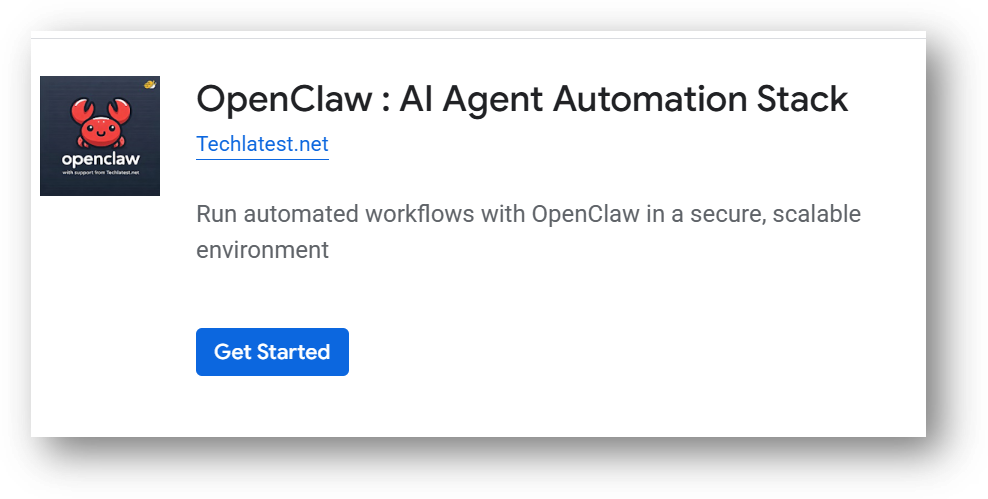
  1. Open OpenClaw: AI Agent Automation Stack listing on GCP Marketplace.

  2. Click Get Started.

/img/gcp/openclaw-vm/marketplace.png

It will ask you to enable the API’s if they are not enabled already for your account. Please click on enable as shown in the screenshot.
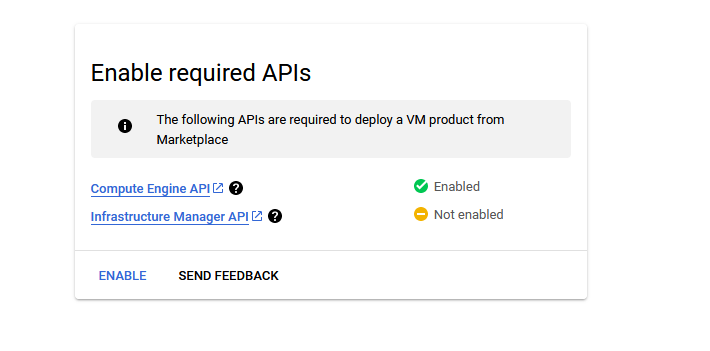
/img/gcp/nvidia-ubuntu/enable-api.png

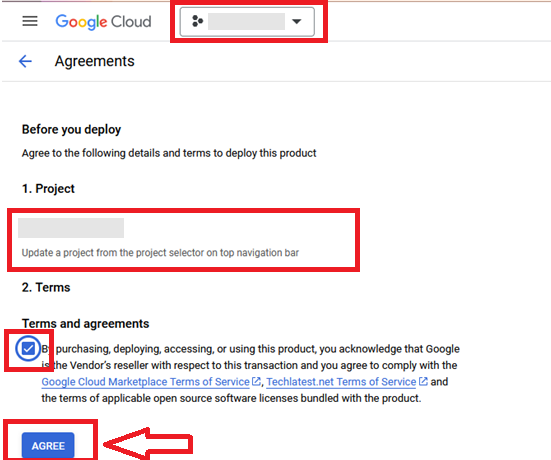
  • It will take you to the agreement page. On this page, you can change the project from the project selector on top navigator bar as shown in the below screenshot.

  • Accept the Terms and agreements by ticking the checkbox and clicking on the AGREE button. /img/common/gcp_agreement_page.png
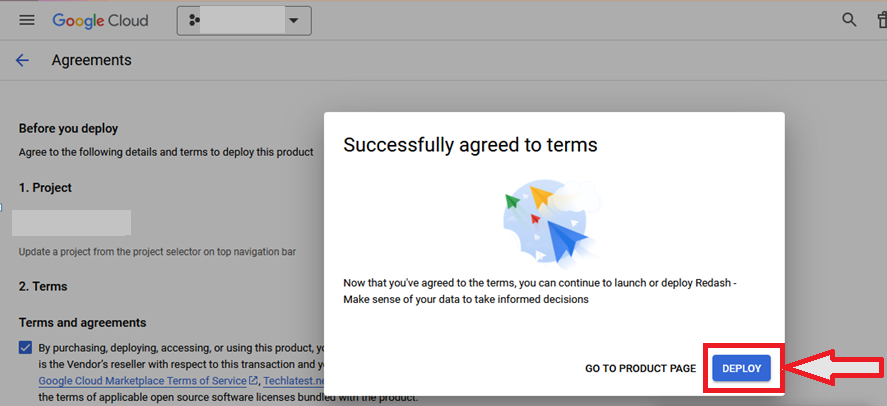
  • It will show you the successfully agreed popup page. Click on Deploy. /img/common/gcp_agreement_accept_page.png
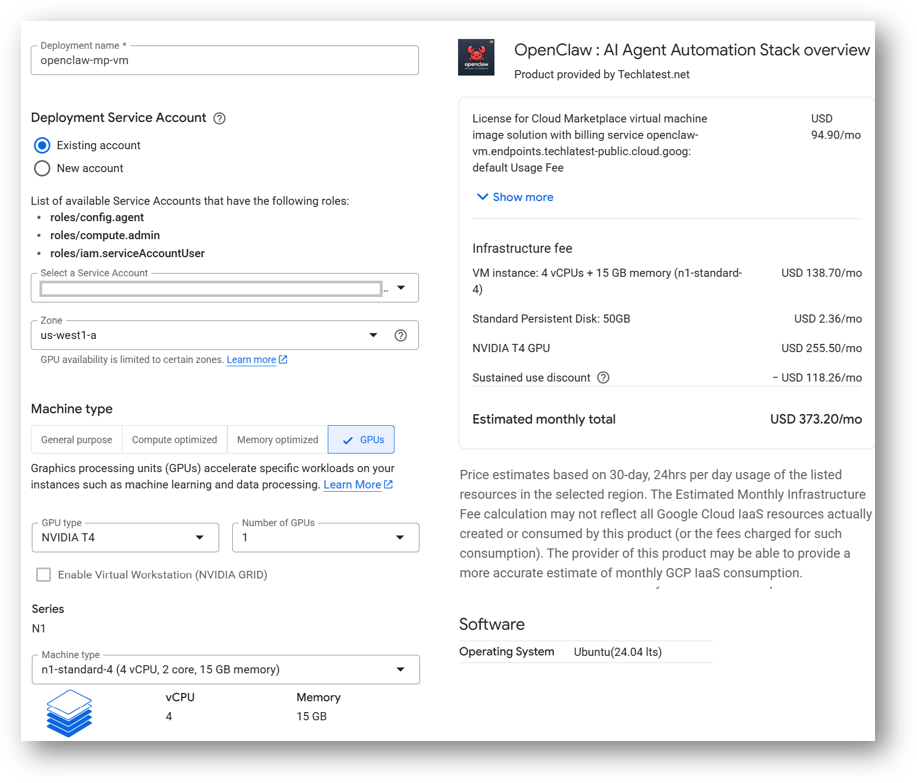
  • On deployment page, give a name to your deployment.
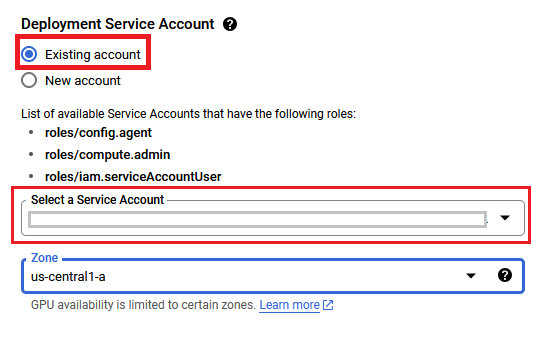
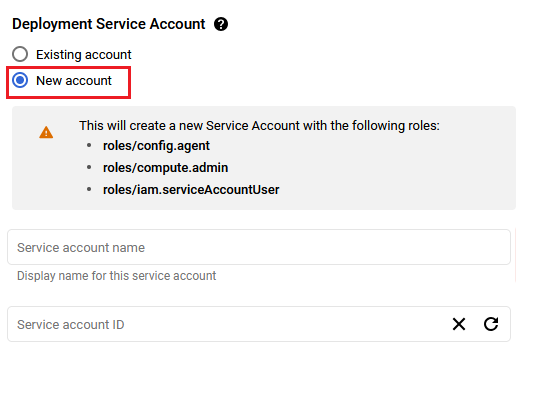
  • In Deployment Service Account section, click on Existing radio button and Choose a service account from the Select a Service Account dropdown.
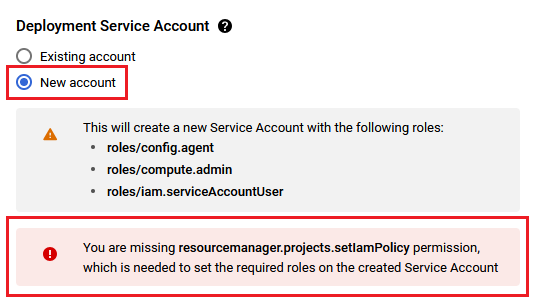
  • If you don't see any service account in dropdown, then change the radio button to New Account and create the new service account here.
  • If after selecting New Account option, you get below permission error message then please reach out to your GCP admin to create service account by following Step by step guide to create GCP Service Account and then refresh this deployment page once the service account is created, it should be available in the dropdown.

  • You are missing resourcemanager.projects.setIamPolicy permission, which is needed to set the required roles on the created Service Account
  • Select a zone where you want to launch the VM(such as us-east1-a)

  • Optionally change the number of cores and amount of memory.

Minimum VM Specs : 15GB RAM /4vCPU
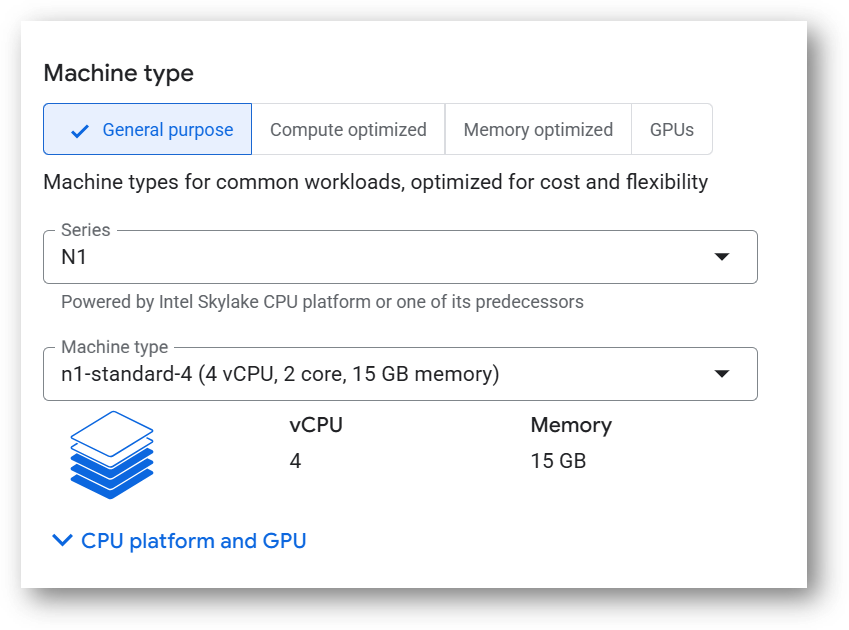
/img/gcp/openclaw-vm/cpu-instance.png

This VM can also be deployed using an NVIDIA T4 GPU instance for faster inference. To deploy the VM with a GPU, click on the GPU tab as shown in below screenshot and select a NVIDIA T4 GPU instance. Please note that GPU availability is limited to specific regions, zones, and machine types. If you do not see a GPU option for your selected region, zone, or machine type, try adjusting those settings to find available configurations.
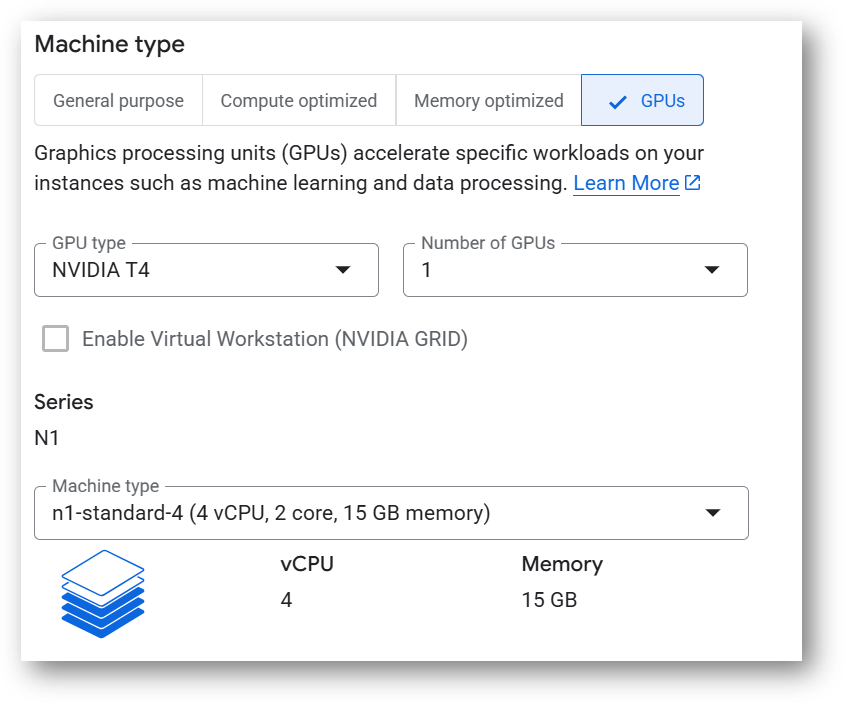
/img/gcp/openclaw-vm/gpu-instance.png

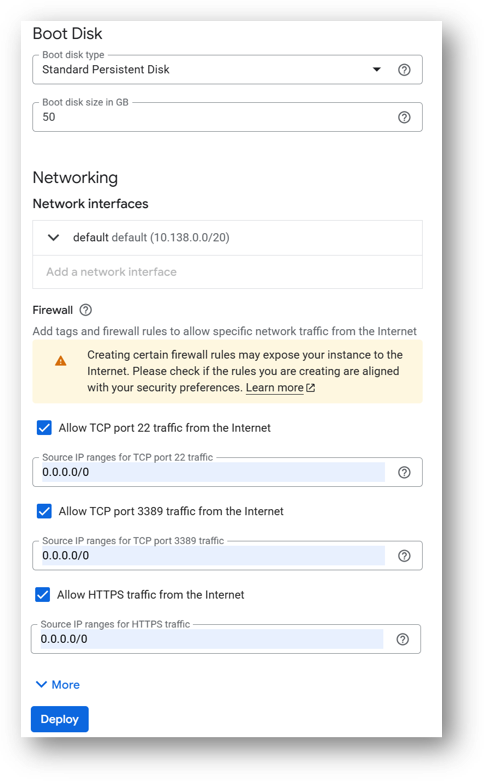
  • Optionally change the boot disk type and size. (This defaults to ‘Standard Persistent Disk’ and 50GB respectively)

  • Optionally change the network name and subnetwork names. Be sure that whichever network you specify has ports 22 (for ssh), 3389 (for RDP) and 443 (for HTTPS) exposed.

  • Click Deploy when you are done.

  • OpenClaw: AI Agent Automation Stack will begin deploying.
/img/gcp/openclaw-vm/deployed-01.png

/img/gcp/openclaw-vm/deployed-02.png

  1. A summary page displays when the compute engine is successfully deployed. Click on the Instance link to go to the instance page .

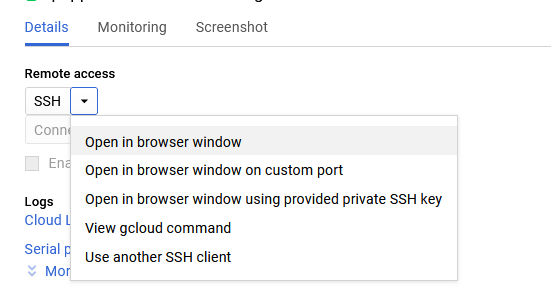
  2. On the instance page, click on the “SSH” button, select “Open in browser window”.
/img/gcp/puppet-support/ssh-option.png

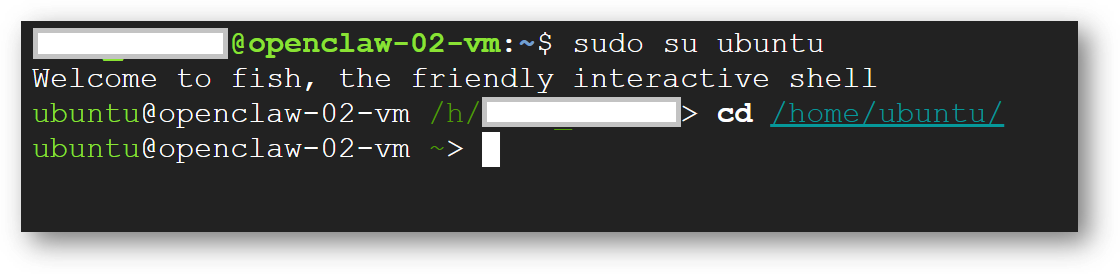
  1. This will open SSH window in a browser. Switch to ubuntu user and navigate to ubuntu home directory.
sudo su ubuntu
cd /home/ubuntu/

/img/gcp/openclaw-vm/switch-user.png

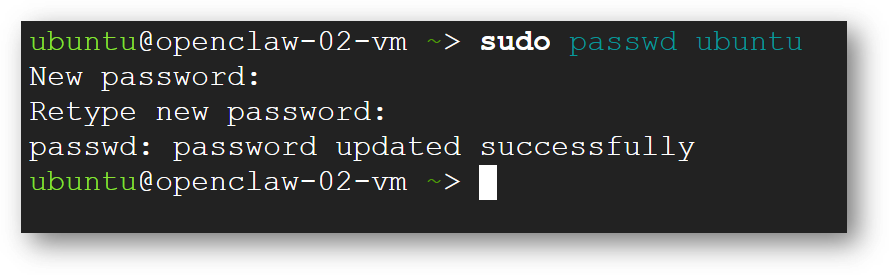
  1. Run below command to set the password for “ubuntu” user
sudo passwd ubuntu

/img/gcp/openclaw-vm/update-passwd.png

  1. Now the password for ubuntu user is set, you can connect to the VM’s desktop environment from any local windows machine using RDP or linux machine using Remmina.

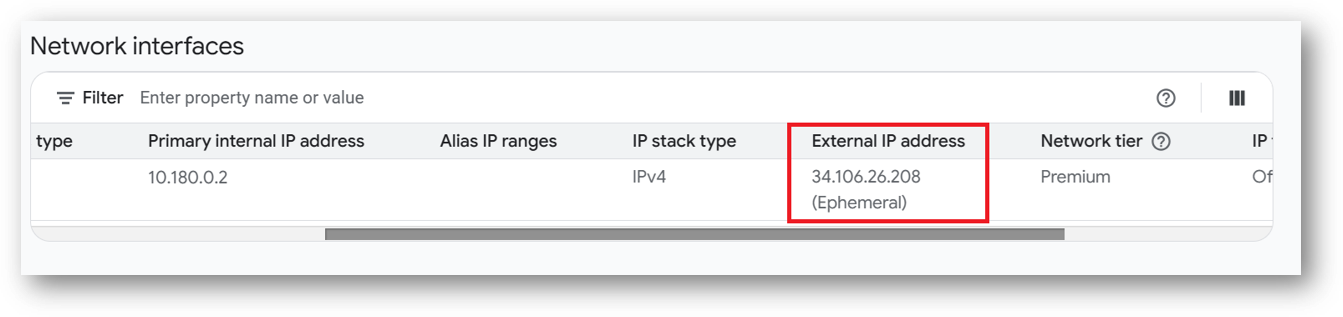
  2. To connect using RDP via Windows machine, first note the external IP of the VM from VM details page as highlighted below
/img/gcp/openclaw-vm/public-ip.png

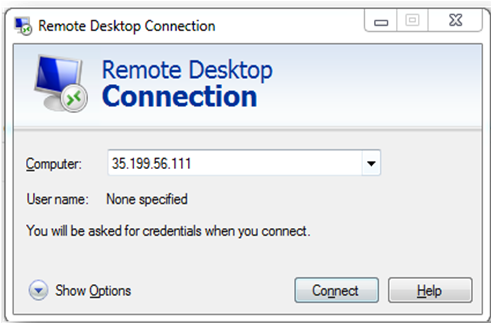
  1. Then From your local windows machine, goto “start” menu, in the search box type and select “Remote desktop connection”

  2. In the “Remote Desktop connection” wizard, paste the external ip and click connect
/img/gcp/jupyter-python-notebook/rdp.png

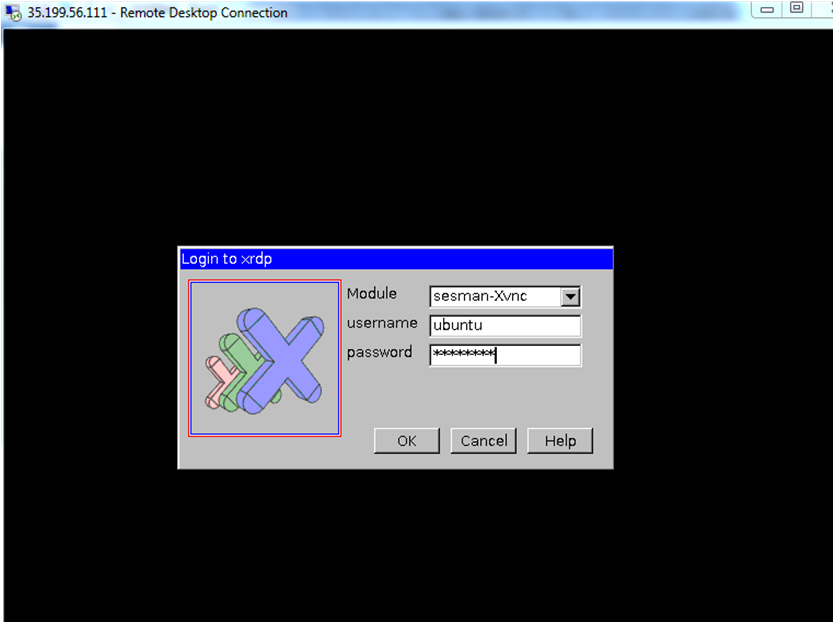
  1. This will connect you to the VM’s desktop environment. Provide “ubuntu” as the userid and the password set in step 6 to authenticate. Click OK

/img/gcp/jupyter-python-notebook/rdp-login.png

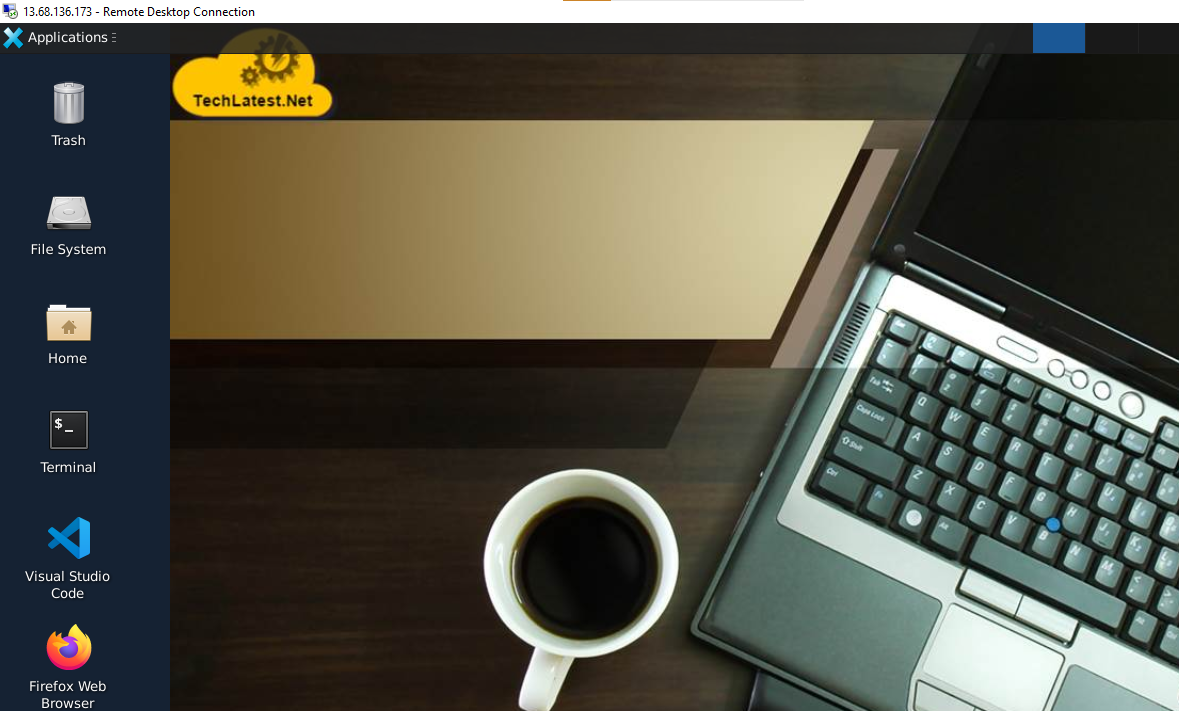
  1. Now you are connected to out of box OpenClaw: AI Agent Automation Stack VM’s desktop environment via Windows machines.

/img/azure/minikube/rdp-desktop.png

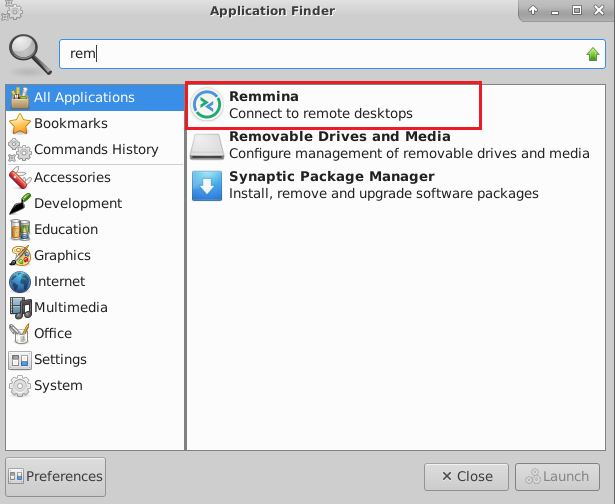
  1. To connect using RDP via Linux machine, first note the external IP of the VM from VM details page, then from your local Linux machine, goto menu, in the search box type and select “Remmina”.

Note: If you don’t have Remmina installed on your Linux machine, first Install Remmina as per your linux distribution.
/img/gcp/common/remmina-search.png

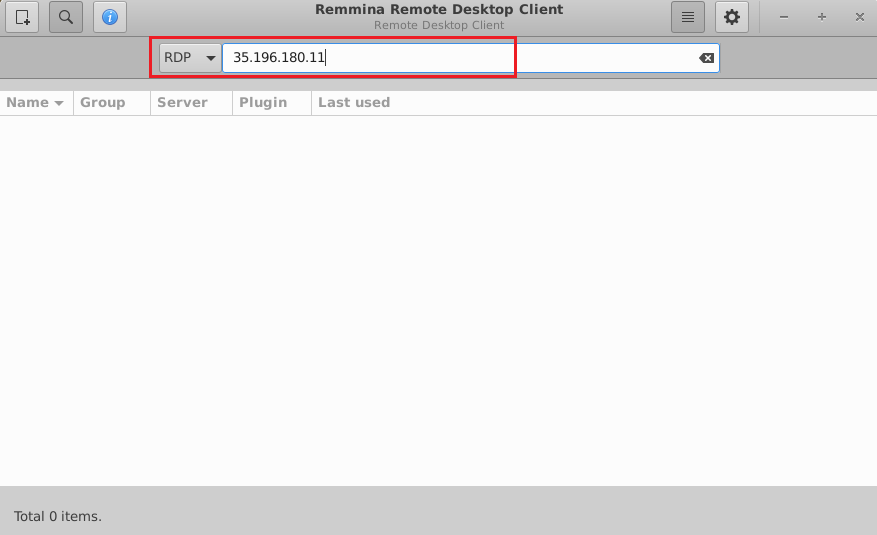
  1. In the “Remmina Remote Desktop Client” wizard, select the RDP option from dropdown and paste the external ip and click enter.

/img/gcp/common/remmina-external-ip.png

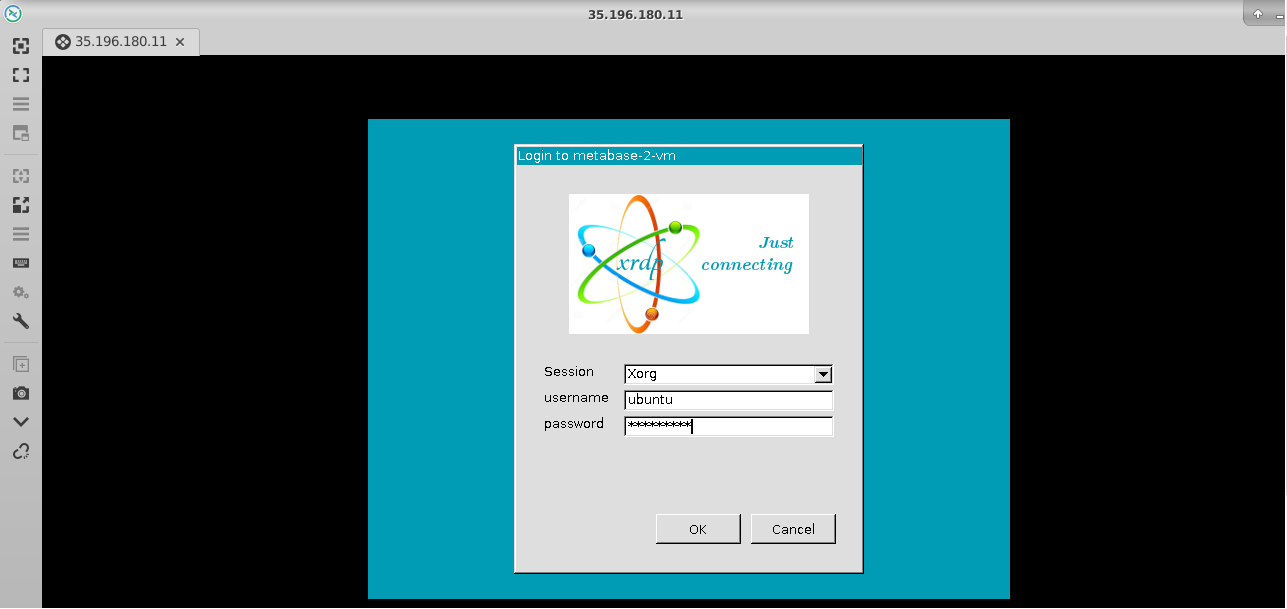
  1. This will connect you to the VM’s desktop environment. Provide “ubuntu” as the userid and the password set in step 6 to authenticate. Click OK

/img/gcp/common/remmina-rdp-login.png

  1. Now you are connected to out of box OpenClaw: AI Agent Automation Stack VM’s desktop environment via Linux machine.

/img/azure/minikube/rdp-desktop.png

  1. The VM will generate a random password to login to OpenClaw Web Interface. To get the password, connect via SSH terminal as shown in above steps and run below command.
sudo cat /home/ubuntu/setup/.gateway_pass

/img/aws/openclaw-vm/openclaw-vm-passwd.png

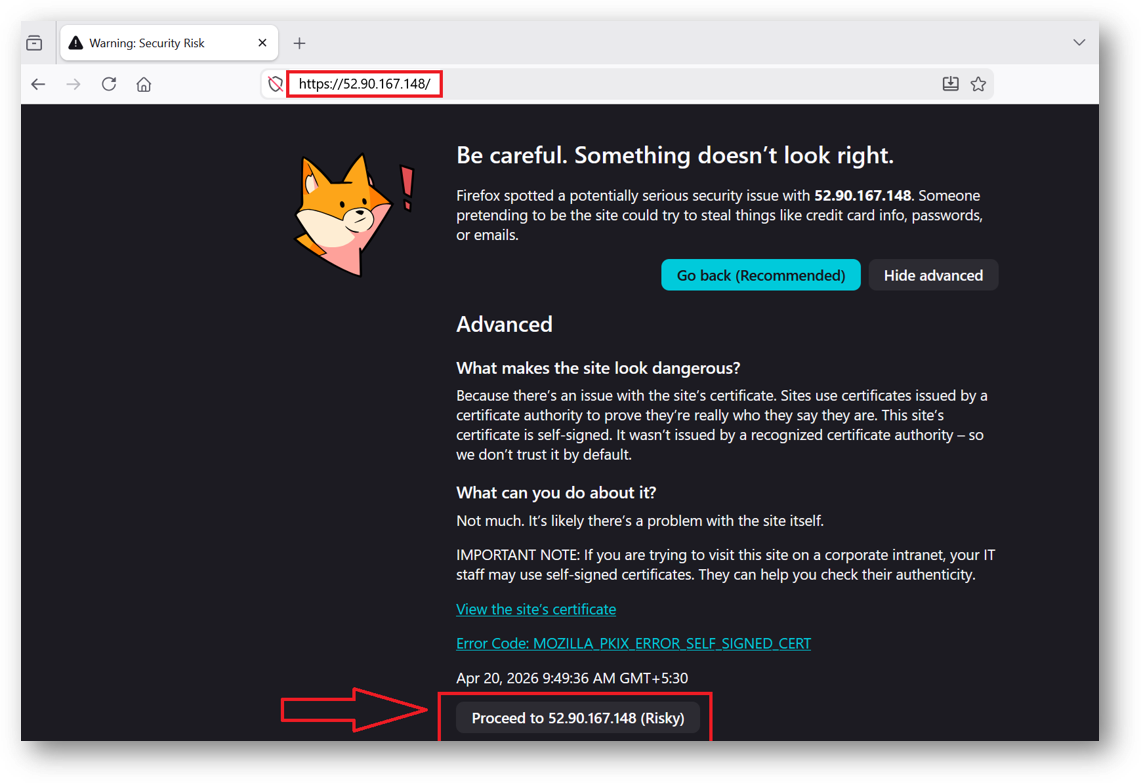
  1. To access the Open Claw Web Interface, copy the public IP address of the VM and paste it in your local browser as https://public_ip_of_vm. Make sure to use https and not http.

Browser will display a SSL certificate warning message. Expand the warning message, accept the certificate warning and Continue.
/img/aws/openclaw-vm/browser-warning.png

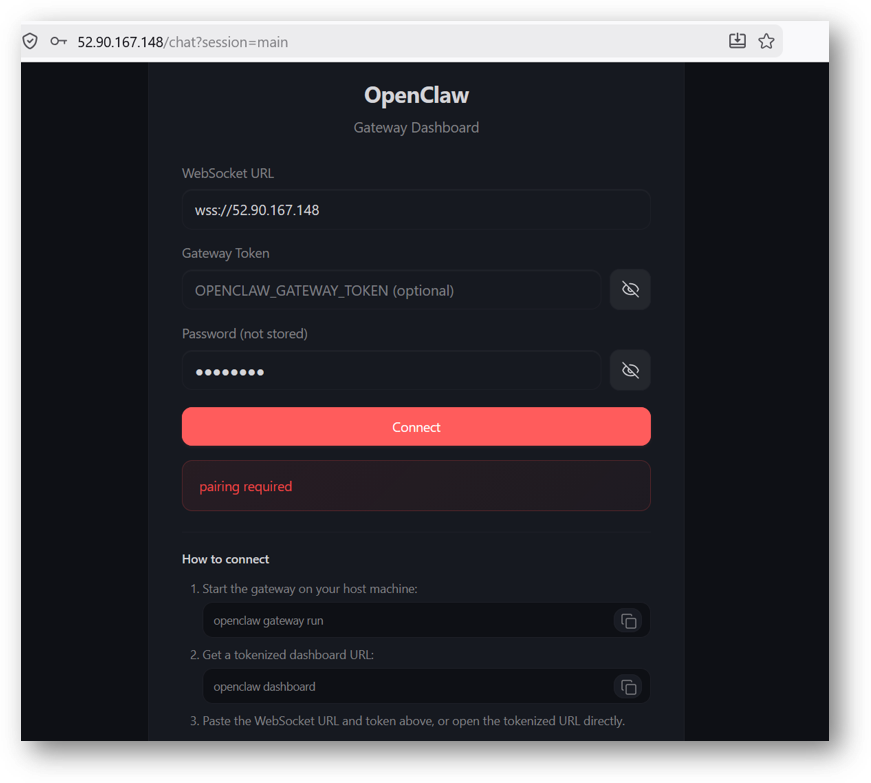
  1. It will open a login page. Provide the password we got at step 17 above and click connect.

/img/aws/openclaw-vm/login-with-passwd.png

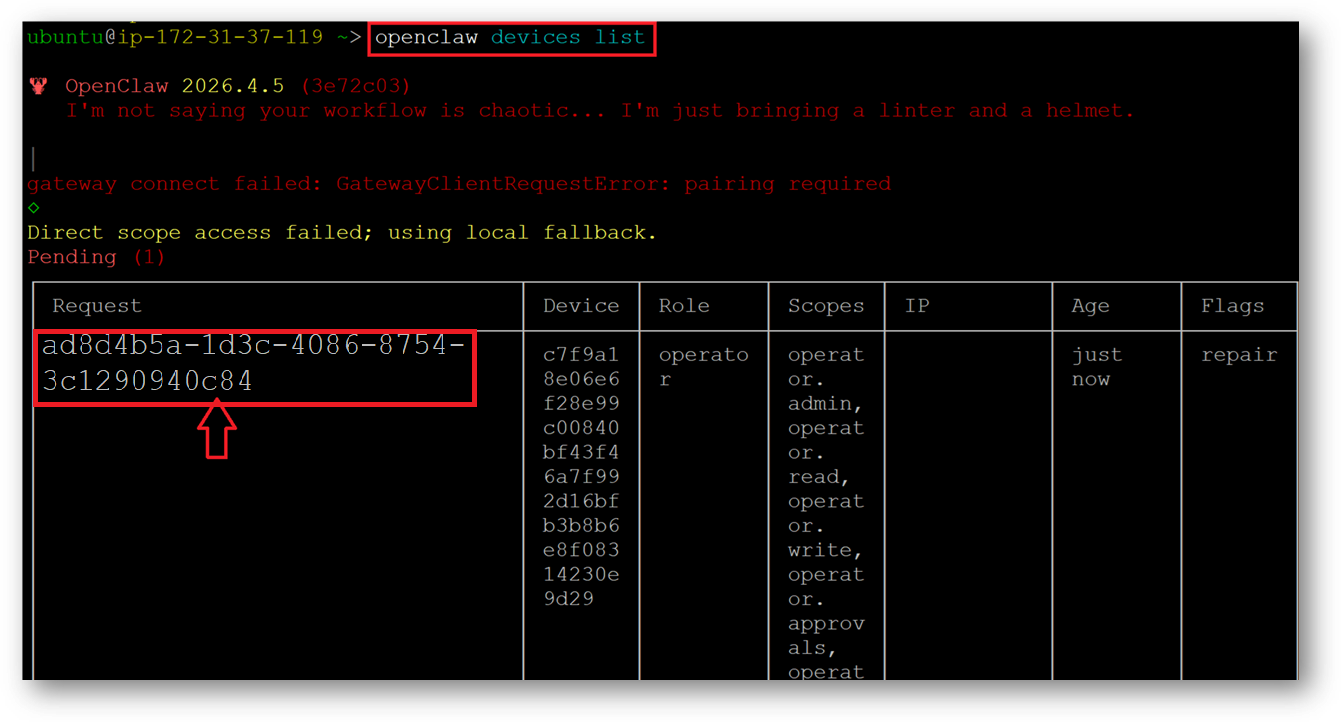
  1. After connect is successful, it will ask you to pair the device. For that go back to SSH terminal and run below command to get the request ID.
openclaw devices list

/img/aws/openclaw-vm/device-list.png

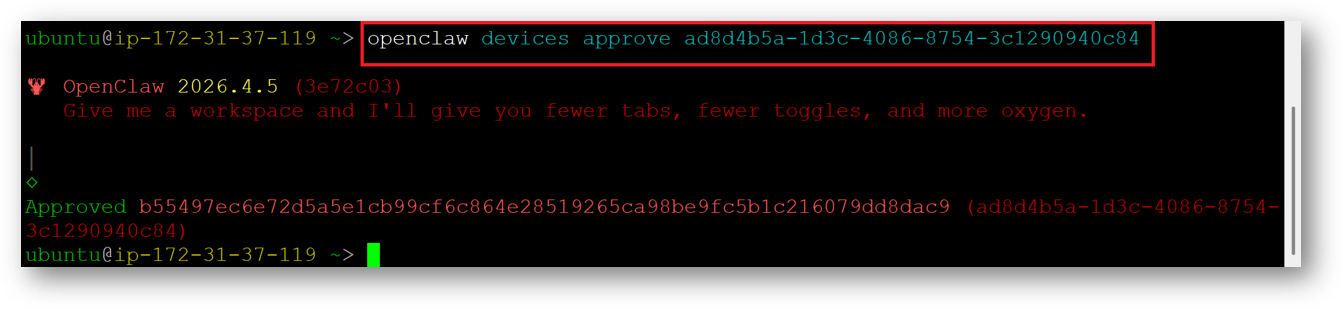
  1. To approve the request, replace the request ID obtained in the previous step in the command below.
openclaw devices approve <requestId>

e.g openclaw devices approve 31b187f9-4545-44fc-bf49-dd1553753b25

Note: Sometimes the request may expire if there is a delay in approving it. If the request gets rejected, simply rerun the “openclaw devices list” command to obtain a new request ID, and then run the approve command using that ID. Also Each browser profile generates a unique device ID, so switching browsers or clearing browser data will require re-pairing. And lastly if your VMs IP address is dynamic which changes on VM reboot then also you need to repair your device.
/img/aws/openclaw-vm/approve-device.png

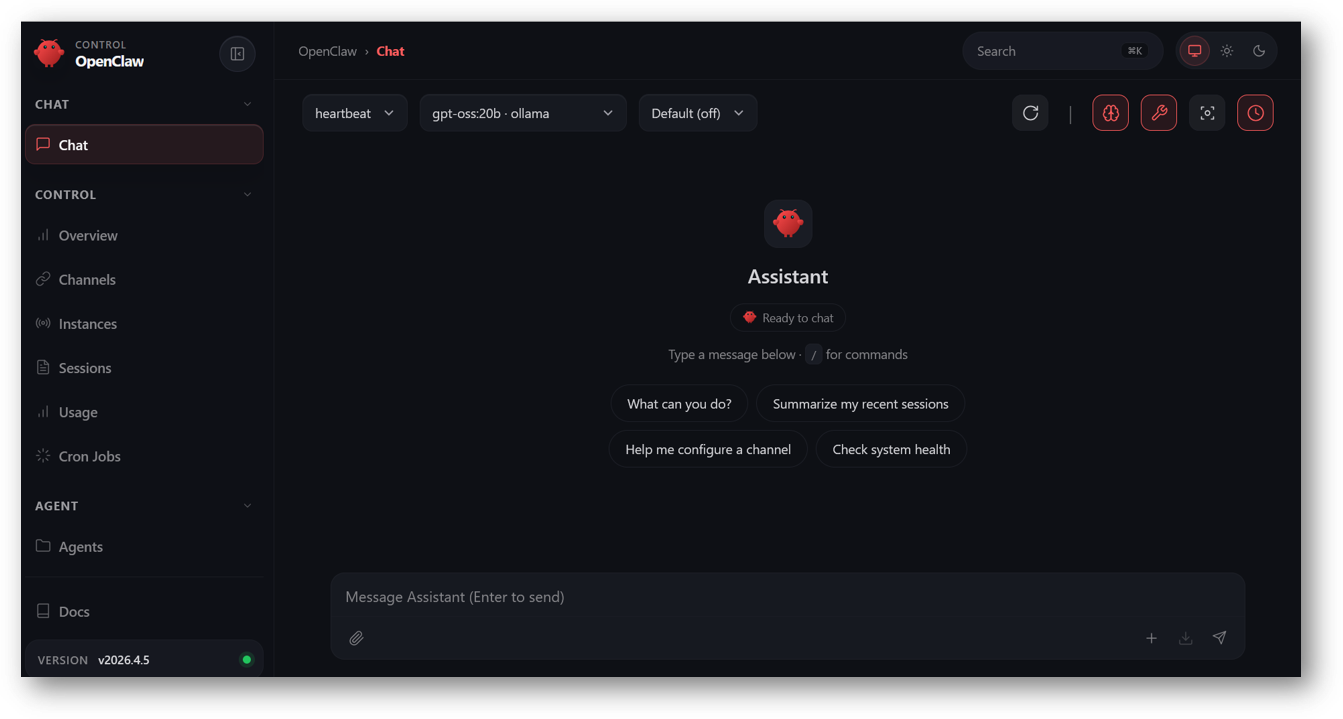
  1. Now you are logged in to OpenClaw Web Interface. You can setup your Agent, configure various channels and start the automation.

/img/aws/openclaw-vm/openclaw-web-interface.png

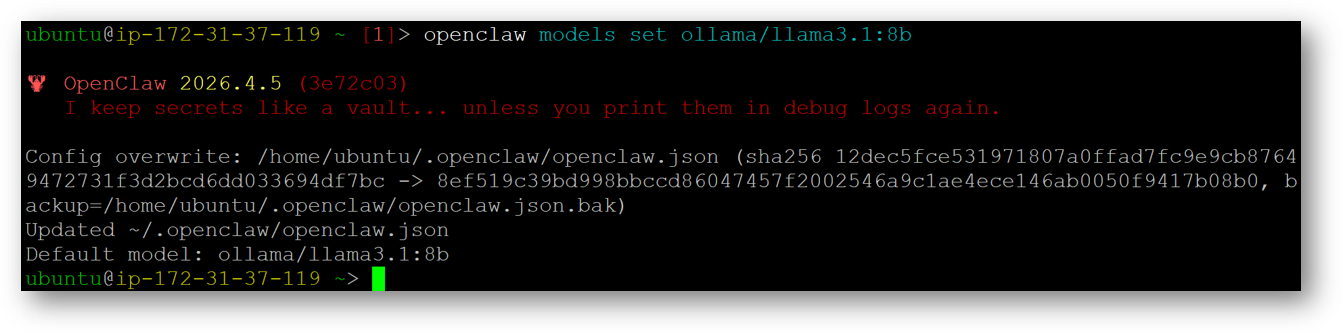
  1. By default the LLM model set is “gpt-oss:20b”. You can pull other ollama models and switch them to primary models by running below commands.
ollama pull <modelname>

e.g ollama pull llama3.1:8b

openclaw models set ollama/llama3.1:8b
/img/aws/openclaw-vm/switch-to-llama3.png

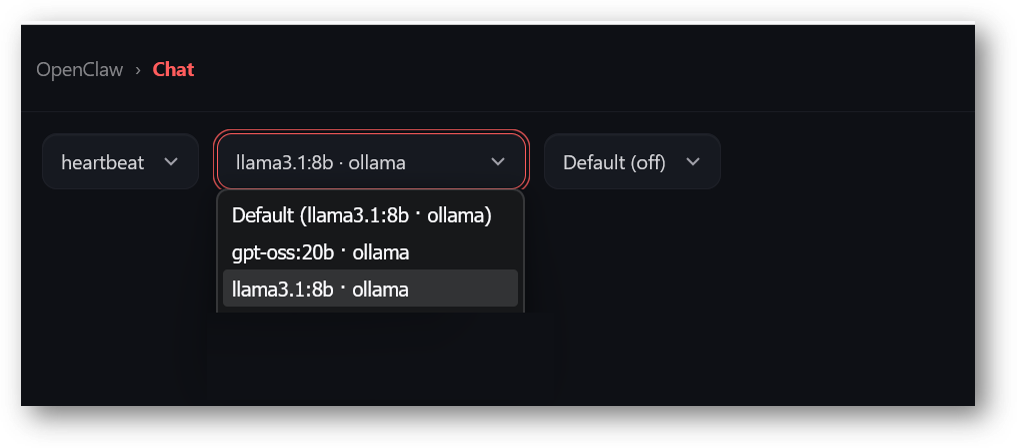
  1. Once the model is switched, go back to Web Interface, refresh the page and select the new model from the model dropdown. Once model is loaded successfully , you can run your queries

/img/aws/openclaw-vm/switch-to-llama3-from-webui.png

For more details, please visit Official Documentation page

Go back