On the EC2 Console page, instance is up and running. To connect to this instance through putty, copy the IPv4 Public IP Address ( refer Putty Guide for details on how to connect using putty/ssh).
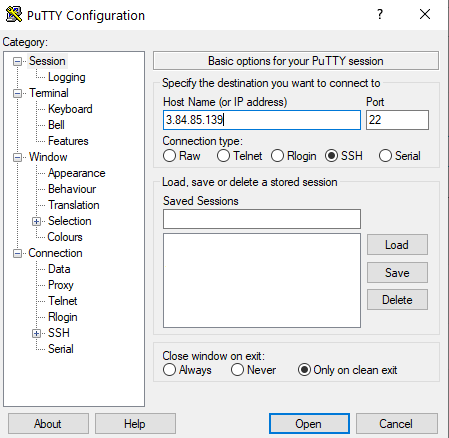
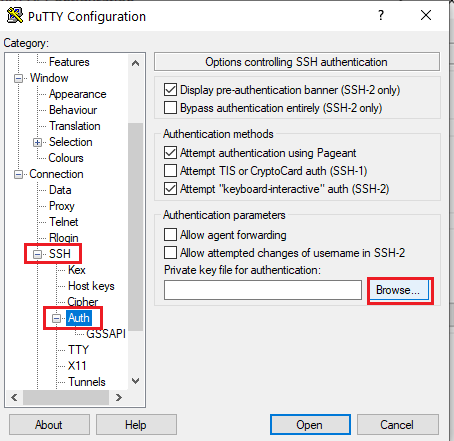
Open putty, paste the IP address and browse your private key you downloaded while deploying the VM, by going to SSH- >Auth, click on Open.
login as ubuntu.
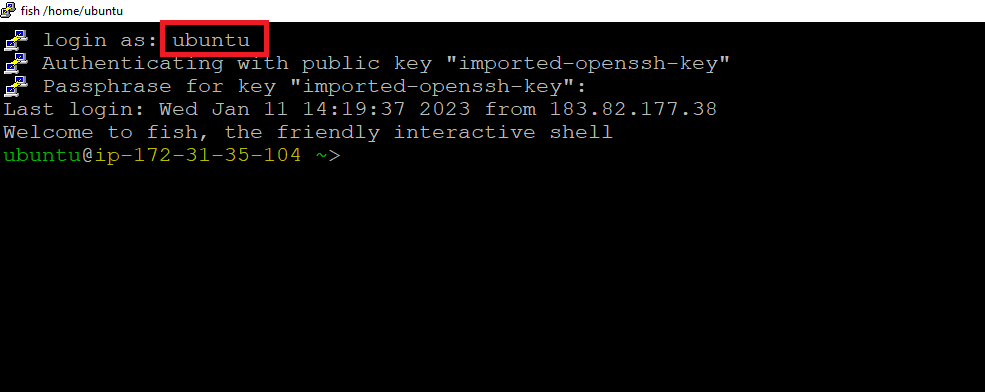
Set the password of Ubuntu user using:
sudo passwd ubuntu
Open Remote Desktop client from your Windows machine (or Remmina if you are on Linux system), copy paste the public ip of the VM. Login with same “ubuntu” user and password set in above step.
The VM will generate a random password to login to LLaMa Factory Web Interface. To get the password, connect via SSH terminal as shown in above steps and run below command.
cat llama-factory-passwd.txt
Here username is admin with random password.
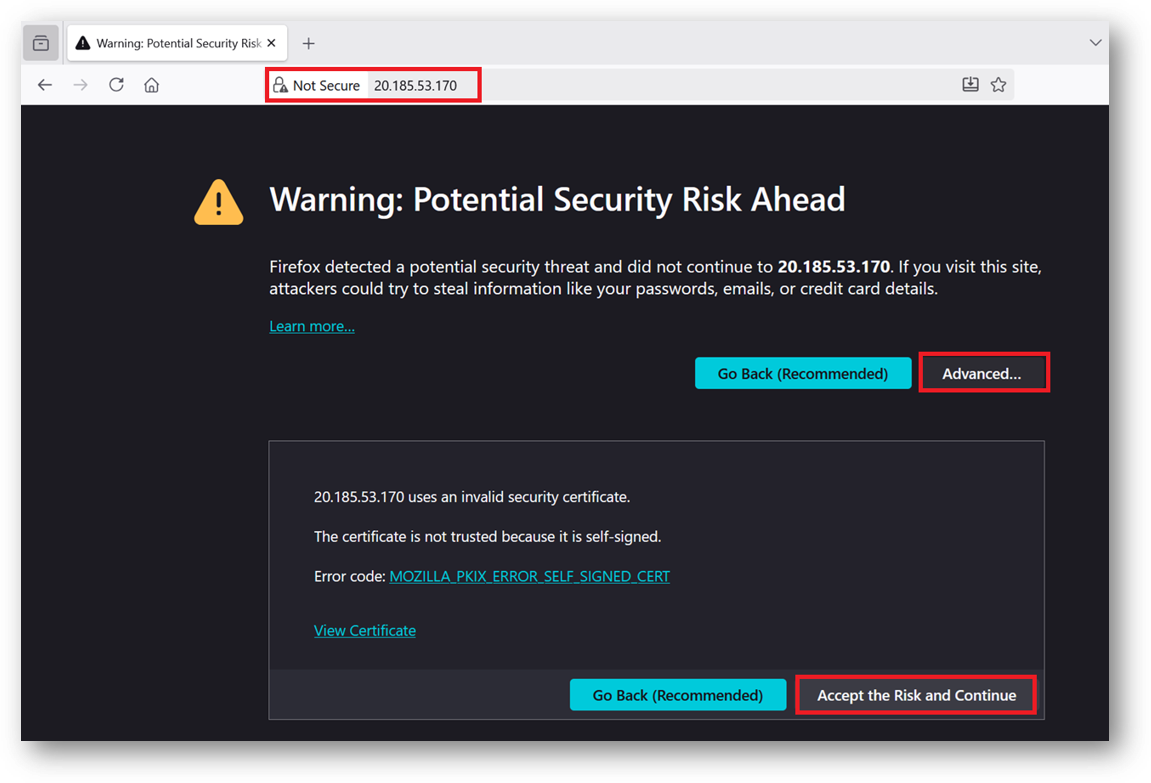
Browser will display a SSL certificate warning message. Accept the certificate warning and Continue.