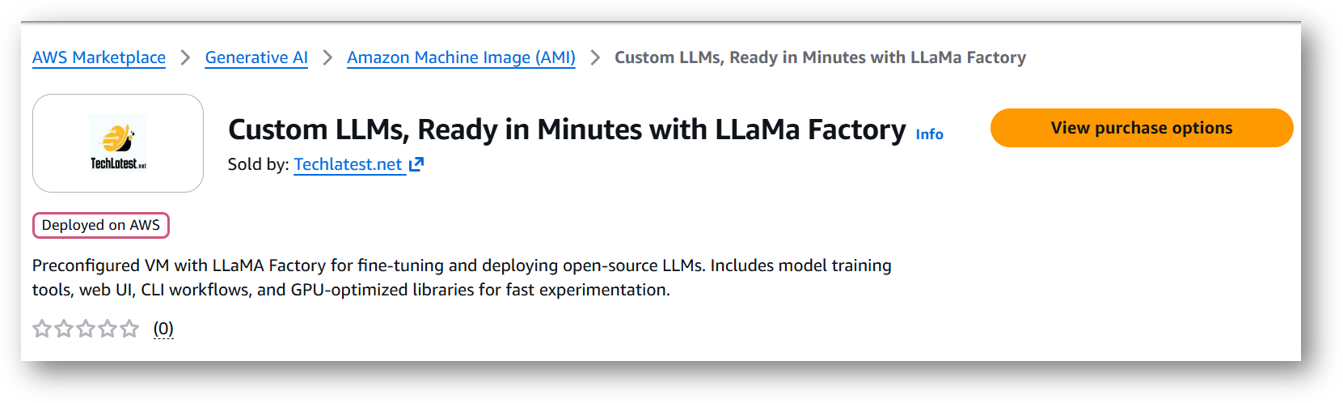
This section describes how to launch and connect to ‘Milvus DB: AI-Ready Vector Database Environment’ VM solution on AWS.
Note: Please note that the VM can be deployed using NVIDIA GPU instances or CPU instances. CPU instances will take longer to fine tune or train the model. Kindly choose the instance based on your requirement.
Login with your credentials and follow the instruction.
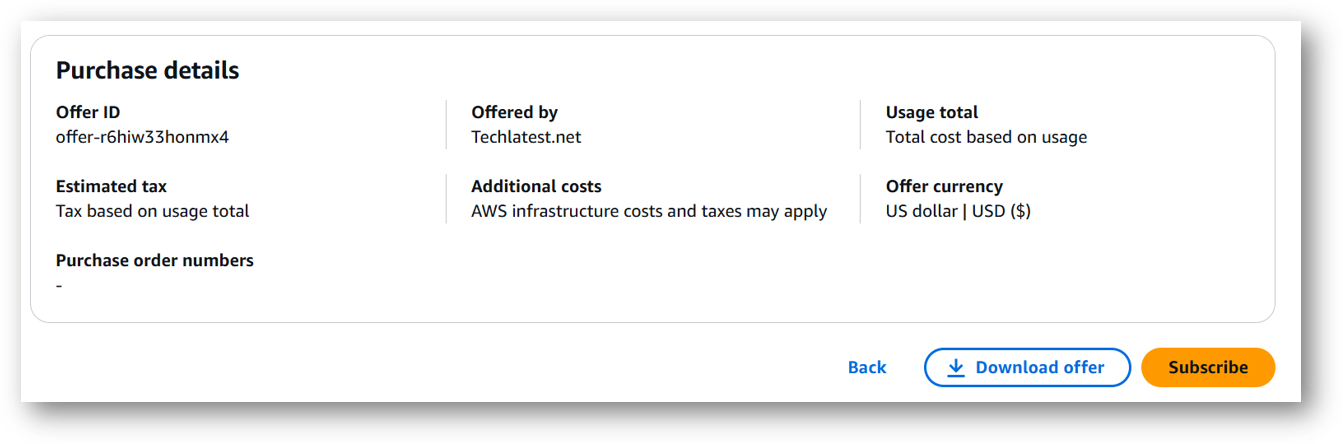
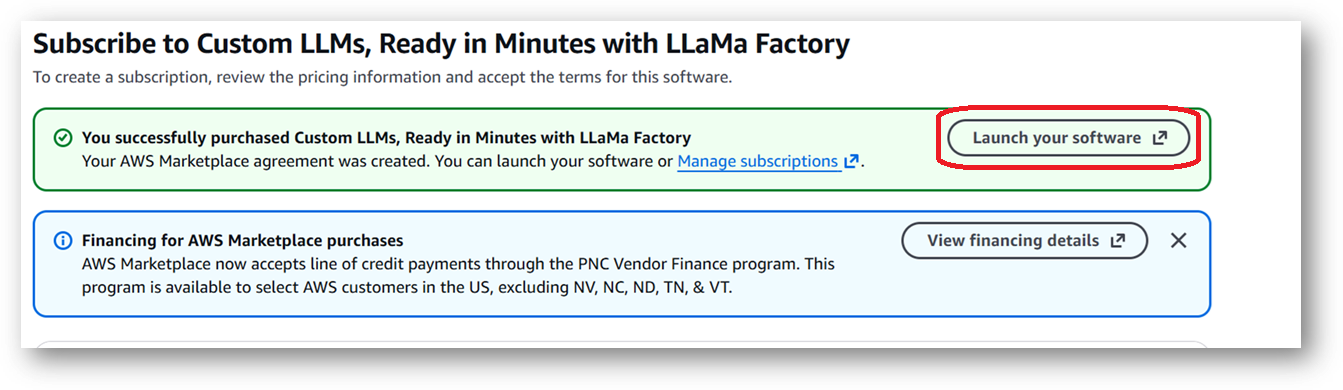
Review the prices and subscribe to the product by clicking on subscribe button located at the bottom of this page. Once you are subscribed to the offer, click on Launch your software button.
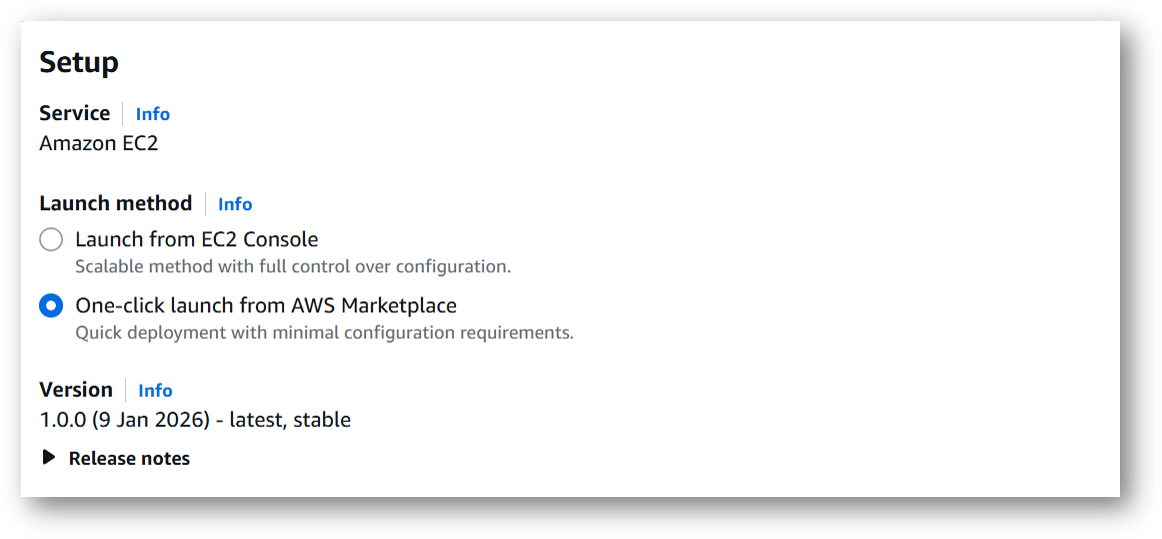
Next page will show you the options to launch the instance, Launch through EC2 and One-click launch from AWS Marketplace. Tick the 2nd option One-click launch from AWS Marketplace.
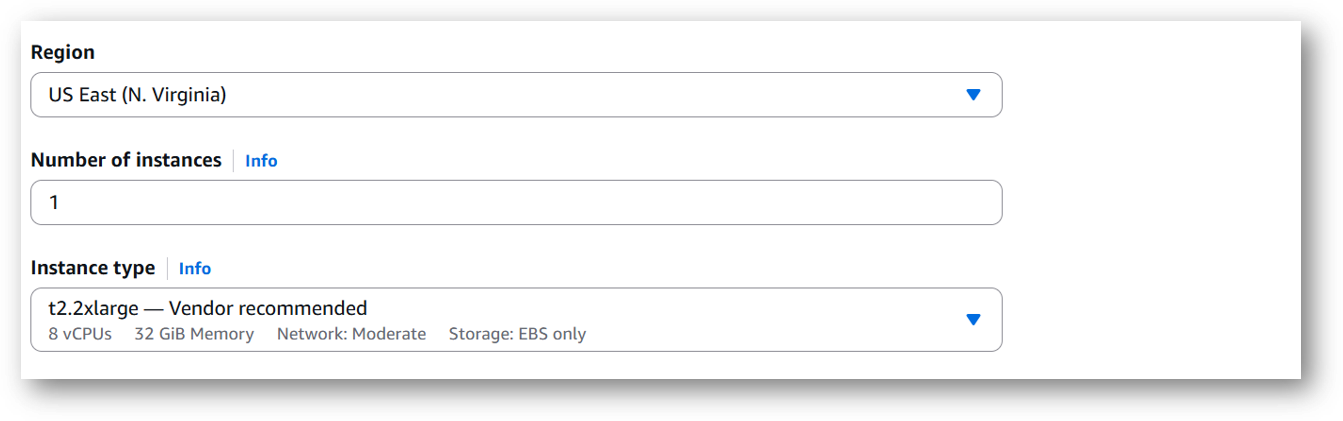
Select a Region where you want to launch the VM(such as US East (N.Virginia))
Optionally change the EC2 instance type. (This defaults to t2.2xlarge instance type, 8 vCPUs and 32 GB RAM.)
Minimum VM Specs : 16GB vRAM / 4vCPU, but for swift performance please choose recommended option 32GB vRAM/8vCPU configuration.
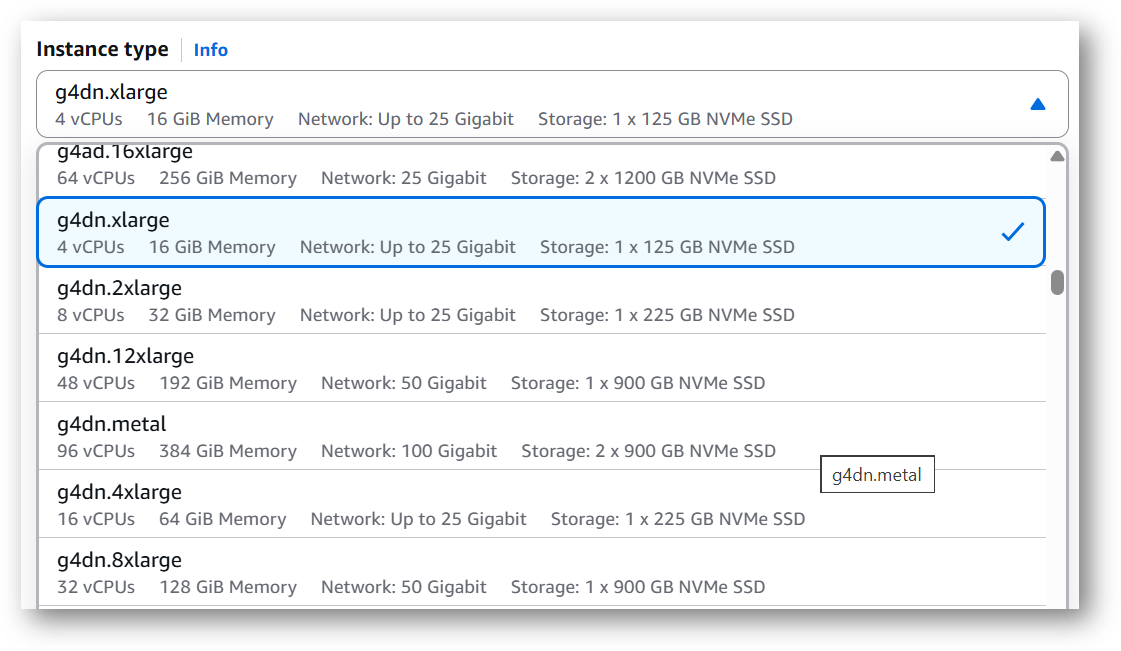
Please note that the VM can also be deployed using NVIDIA GPU instance. If you want to deploy this instance with GPU configuration then Please choose NVIDIA GPU (e.g g4dn.xlarge) or check the available NVIDIA GPU instances on AWS documentation page.
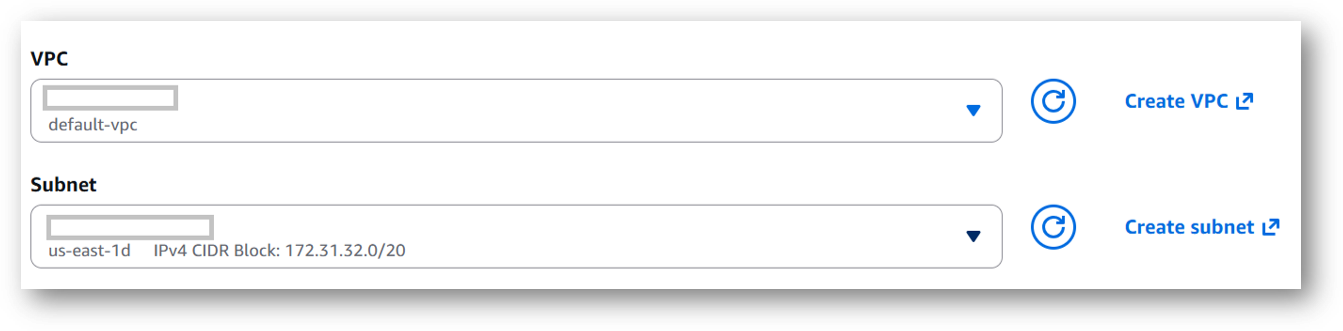
Optionally change the network name and subnetwork names.
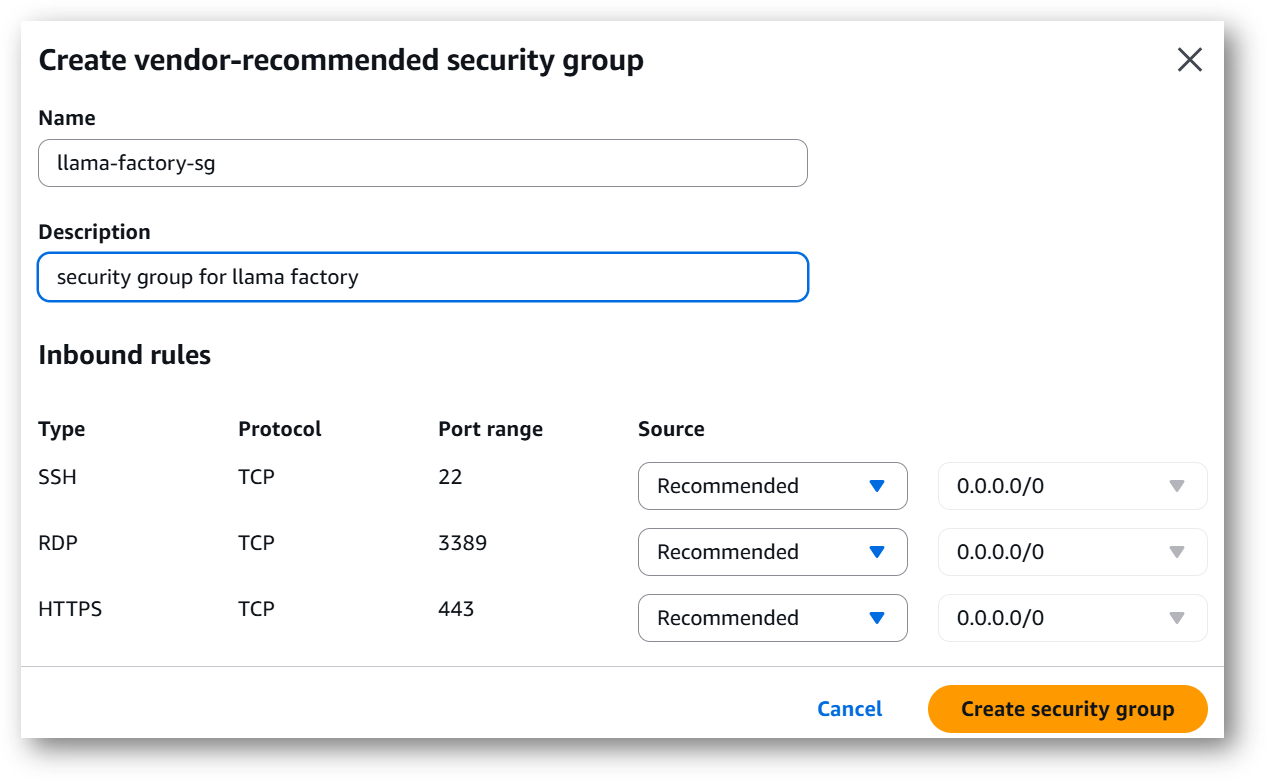
Select the Security Group. Be sure that whichever Security Group you specify have ports 22 (for SSH), 3389 (for RDP) and 443 (for HTTPS) exposed. Or you can create the new SG by clicking on “Create Security Group” button. Provide the name and description and save the SG for this instance.
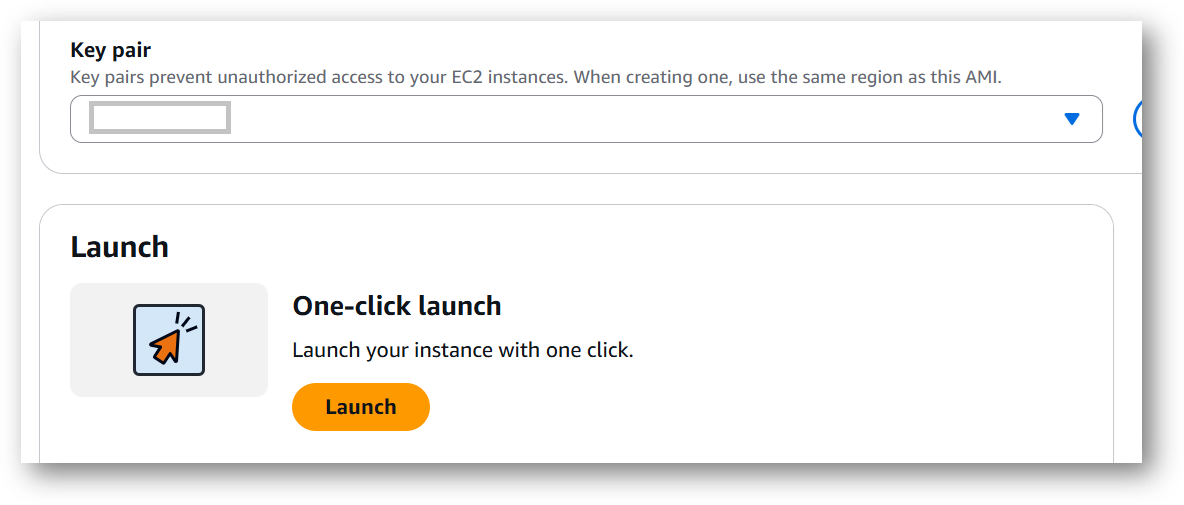
Be sure to download the key-pair which is available by default, or you can create the new key-pair and download it.
Click on Launch..
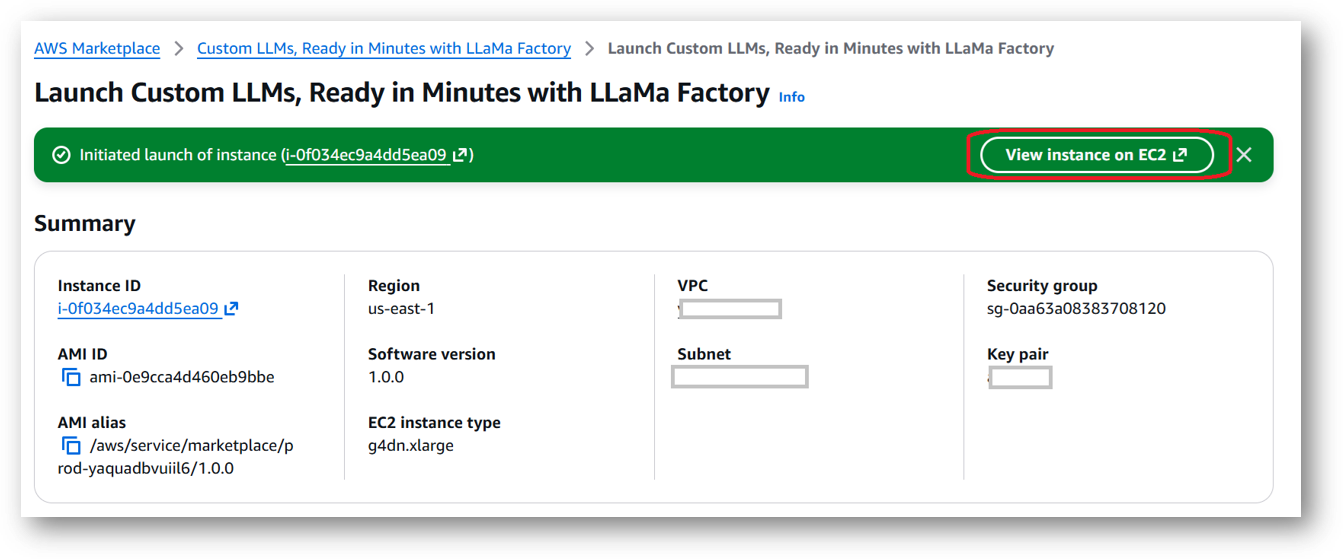
Custom LLMs, Ready in Minutes with LLaMa Factory will begin deploying.
A summary page displays. To see this instance on EC2 Console click on View instance on EC2 link.
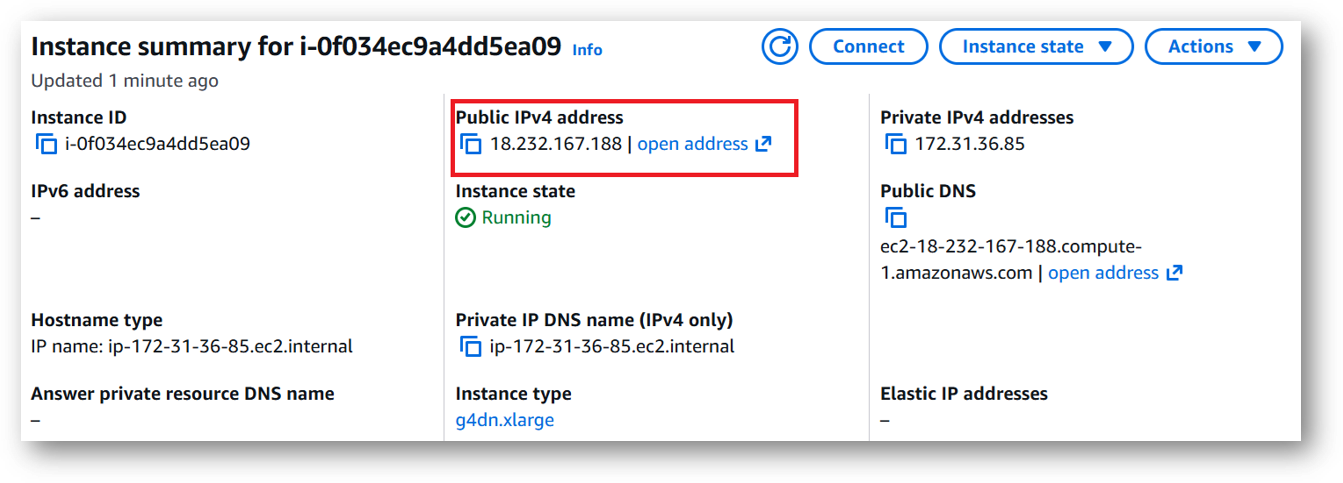
To connect to this instance through putty, copy the IPv4 Public IP Address from the VM’s details page.
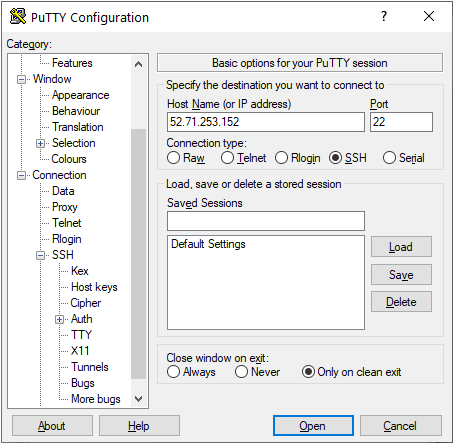
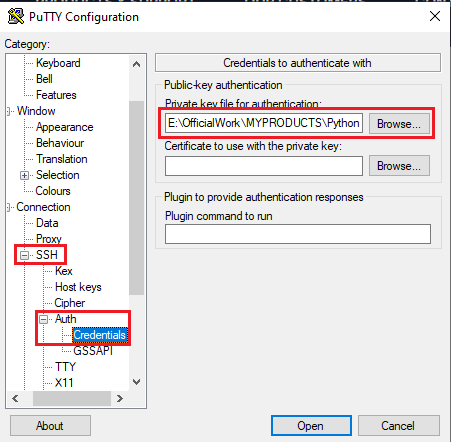
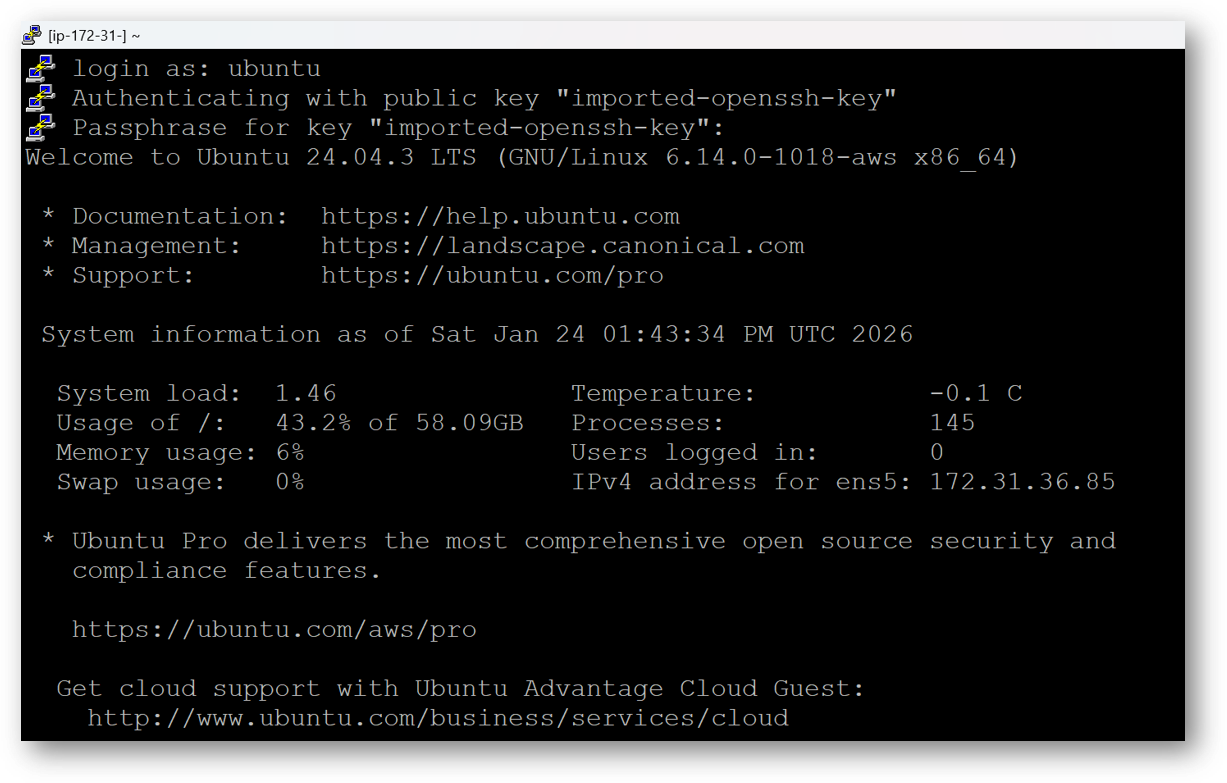
Open putty, paste the IP address and browse your private key you downloaded while deploying the VM, by going to SSH->Auth->Credentials, click on Open. Enter ubuntu as userid
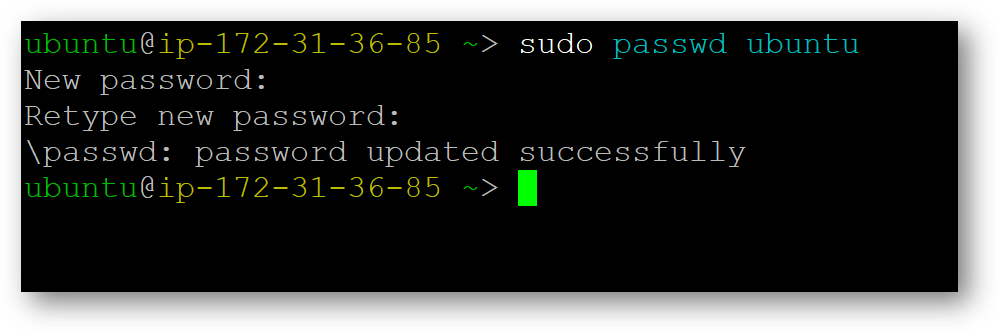
Once connected, change the password for ubuntu user using below command
sudo passwd ubuntu
Now the password for ubuntu user is set, you can connect to the VM’s desktop environment from any local Windows Machine using RDP protocol or Linux Machine using Remmina.
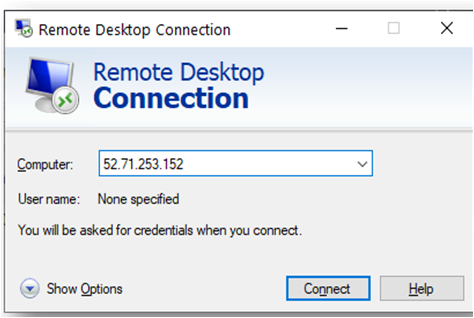
From your local windows machine, goto “start” menu, in the search box type and select “Remote desktop connection”. In the “Remote Desktop connection” wizard, copy the public IP address and click connect
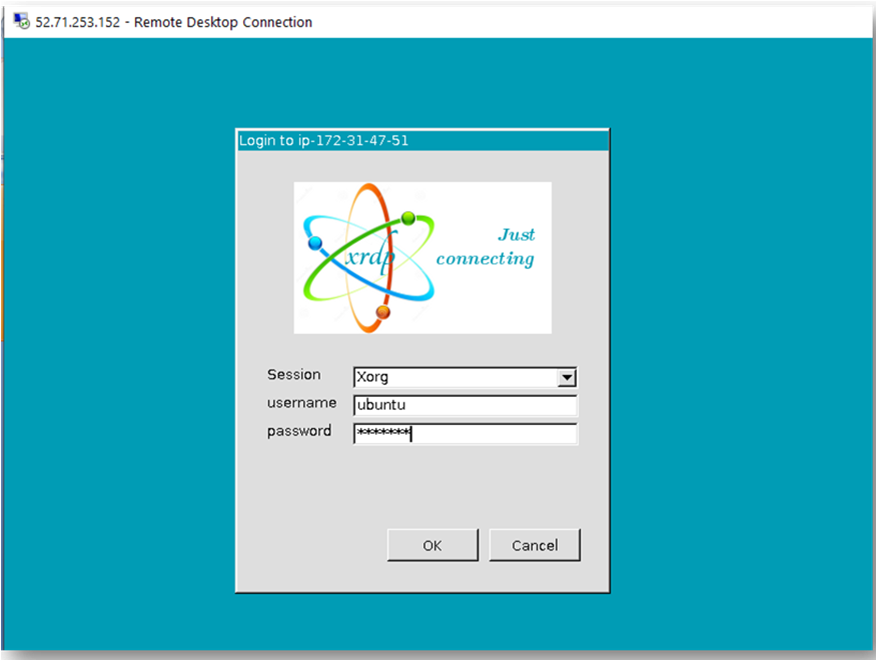
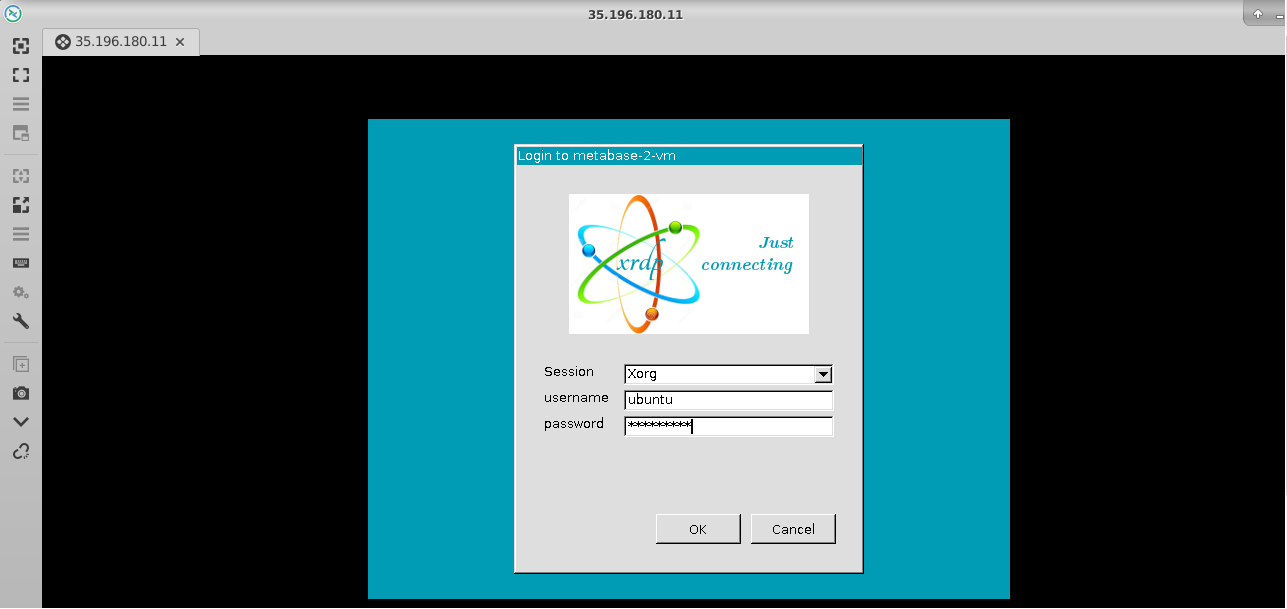
This will connect you to the VM’s desktop environment. Provide the username “ubuntu” and the password set in the above “Reset password” step to authenticate. Click OK
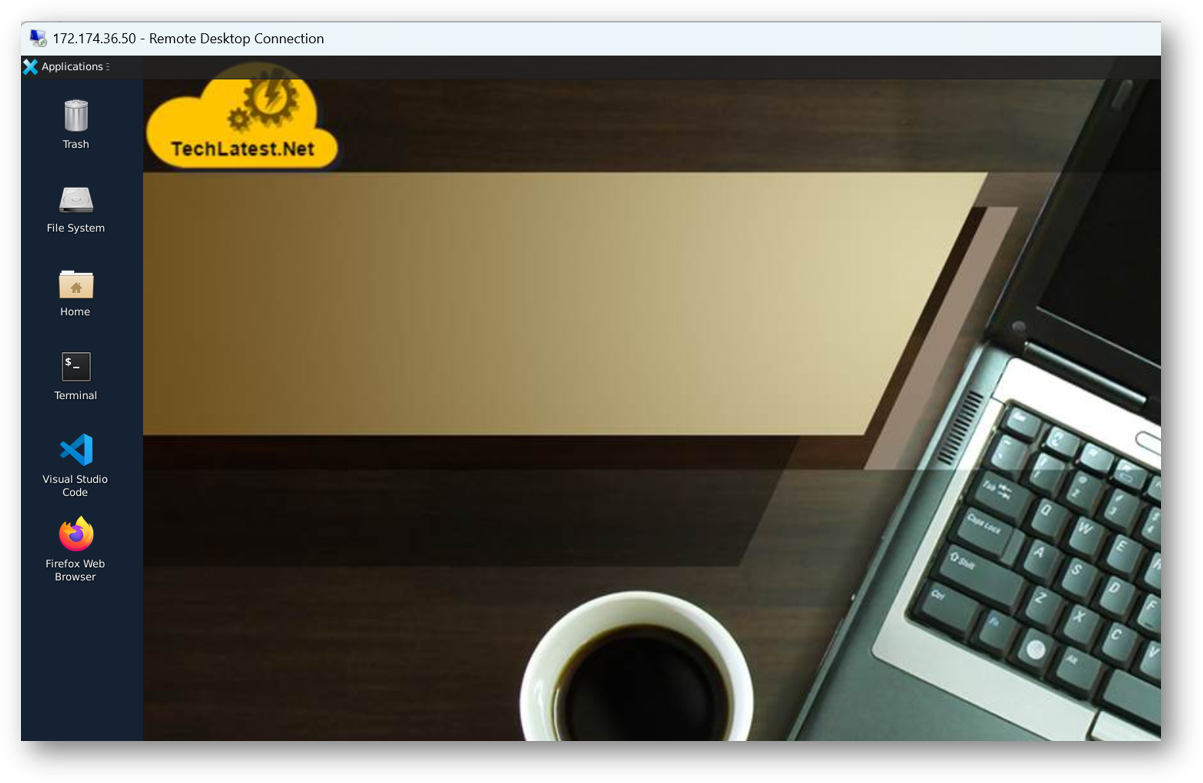
Now you are connected to the out of box Custom LLMs, Ready in Minutes with LLaMa Factory VM’s desktop environment via Windows Machine.
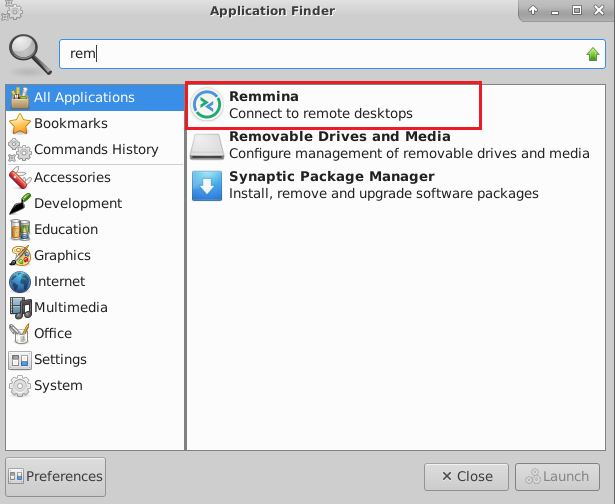
To connect using RDP via Linux machine, first note the external IP of the VM from VM details page, then from your local Linux machine, goto menu, in the search box type and select “Remmina”.
Note: If you don’t have Remmina installed on your Linux machine, first Install Remmina as per your linux distribution.
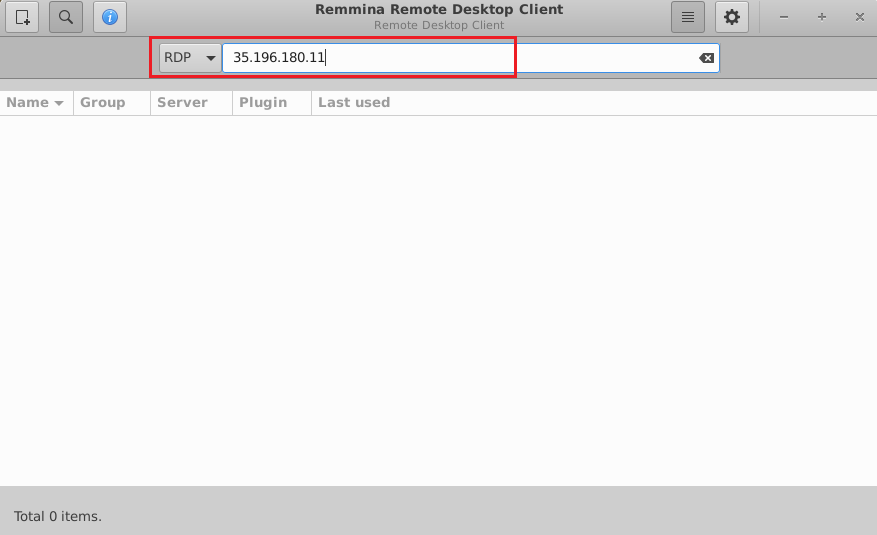
In the “Remmina Remote Desktop Client” wizard, select the RDP option from dropdown and paste the external ip and click enter.
This will connect you to the VM’s desktop environment. Provide “ubuntu” as the userid and the password set in above reset password step to authenticate. Click OK
Now you are connected to out of box Custom LLMs, Ready in Minutes with LLaMa Factory VM’s desktop environment via Linux machine.
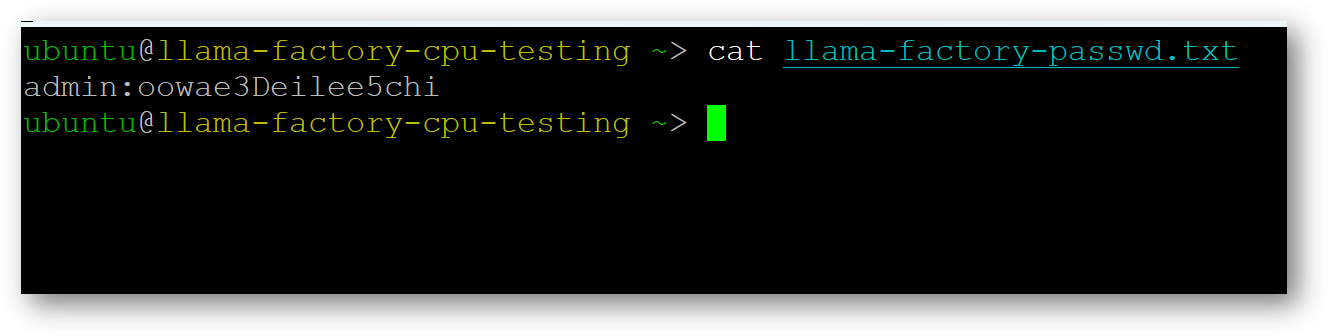
The VM will generate a random password to login to LLaMa Factory Web Interface. To get the password, connect via SSH terminal as shown in above steps and run below command.
cat llama-factory-passwd.txt
Here username is admin with random password.
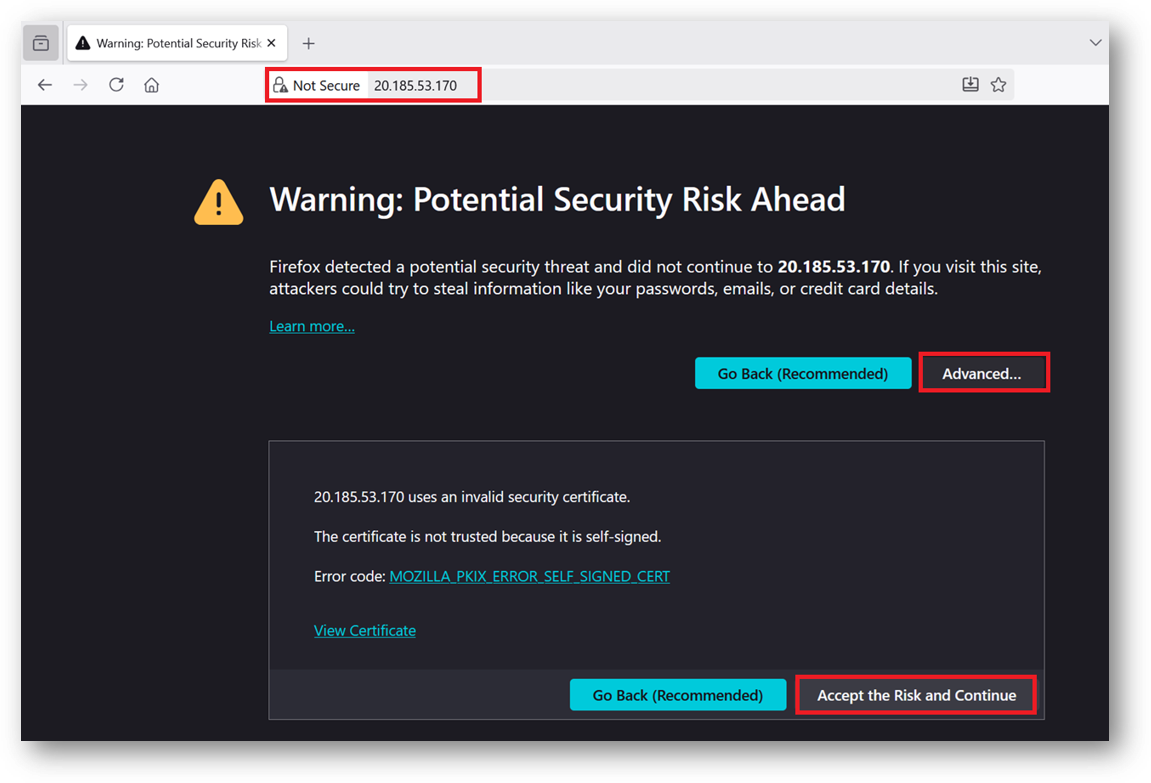
To access the Llama Factory Web Interface, copy the public IP address of the VM and paste it in your local browser as https://public_ip_of_vm. Make sure to use https and not http.
Browser will display a SSL certificate warning message. Accept the certificate warning and Continue.
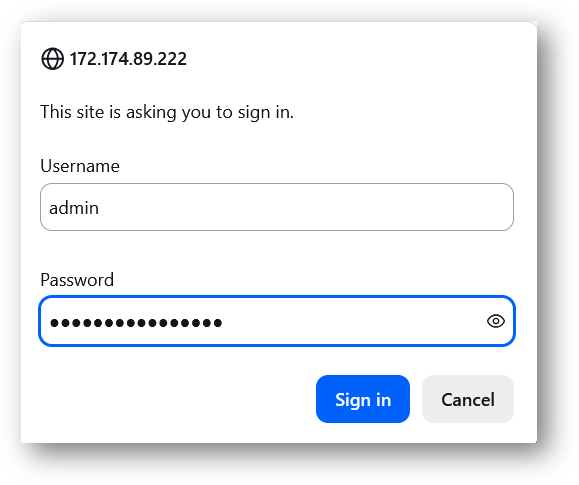
Provide the ‘admin’ user and its password we got at step 14 above.
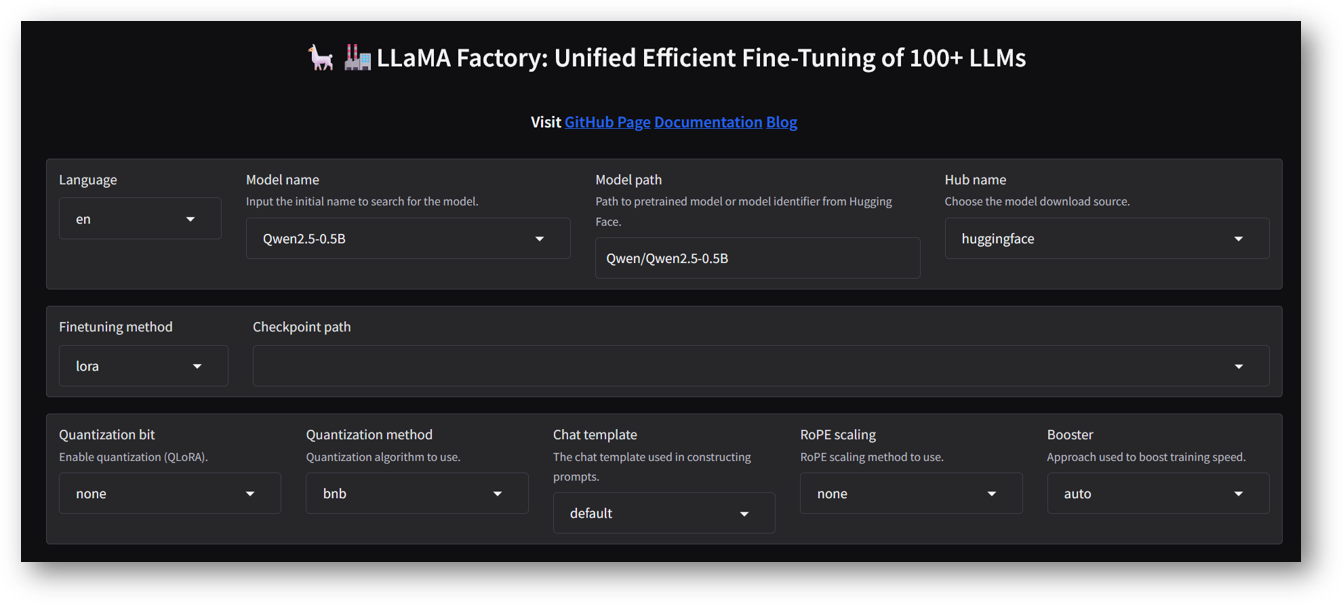
Now you are logged in to LLaMa Factory Web Interface. Here you can select different values and train/chat/evaluate the models.
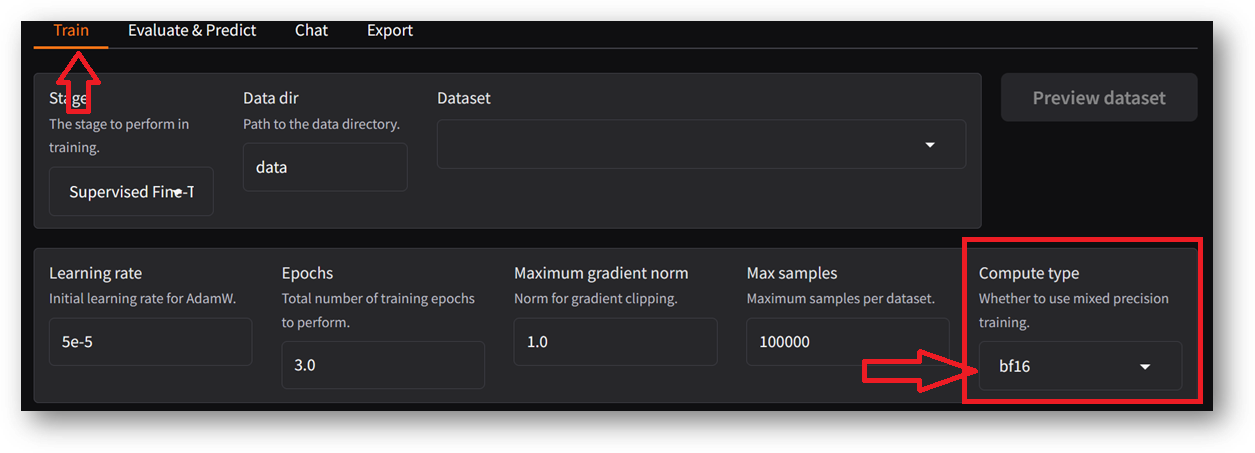
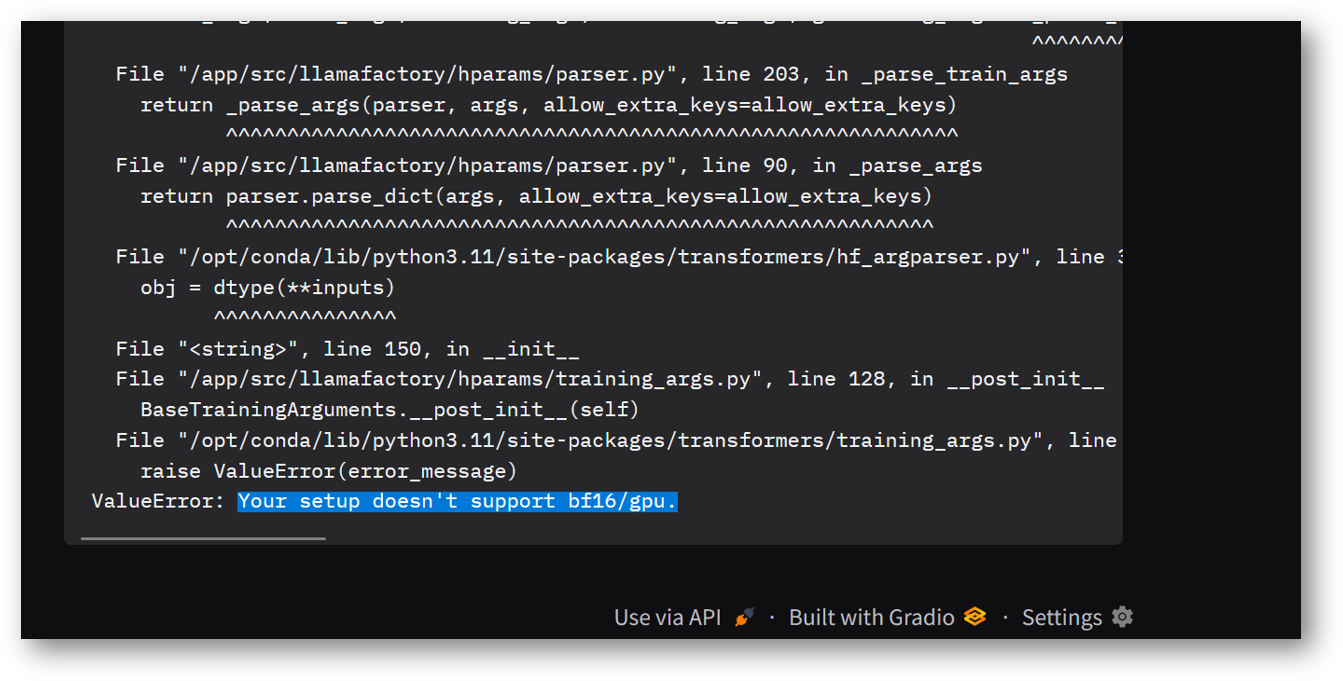
Note: If you are using CPU instance type then make sure to change the default value of Compute Type from bf16 to fp16 or fp32. If Training starts with the default value bf16 on CPU instance then it will show an error message “Your setup doesn’t support bf16/gpu”. Also CPU instances will take much longer to finish the training compared to GPU instances.
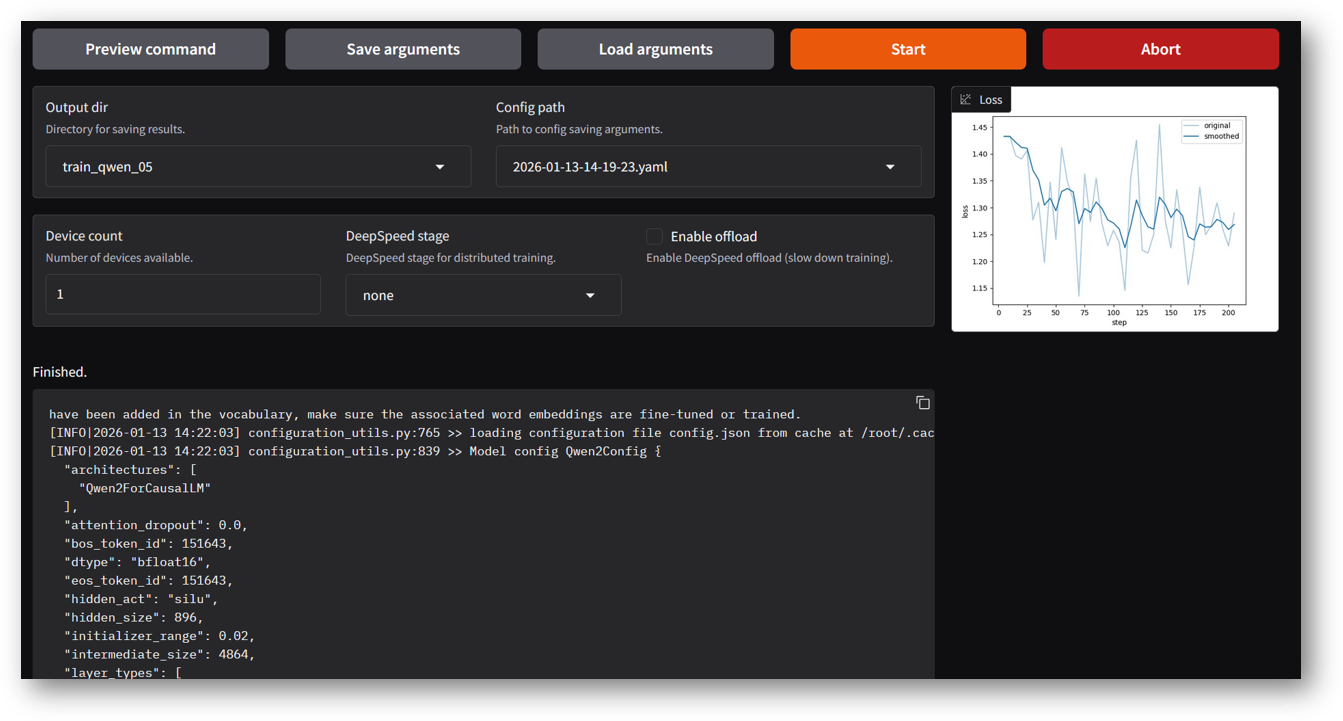
To begin with , you can set below values in Web Interface and click on Start to start the training. Once the training finishes, you can use the trained model for Chat.
Output dir: train_qwen_05 (Any name of your choice)
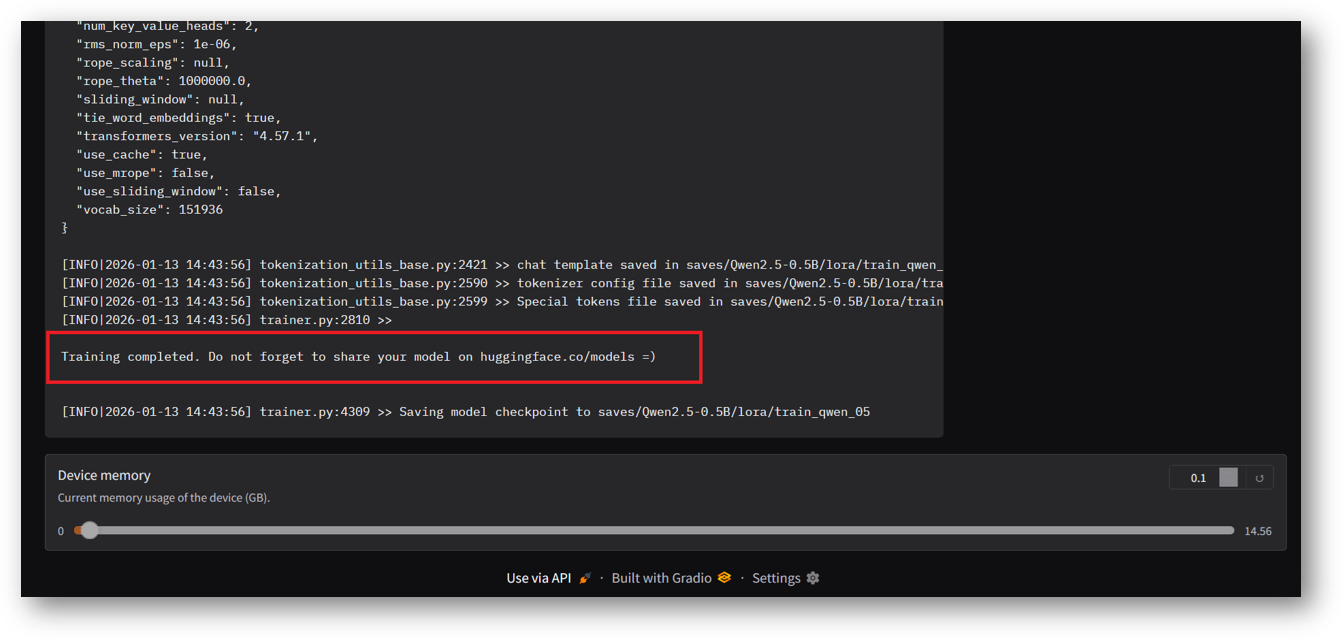
Once training completed you will see below successful message in the logs window.
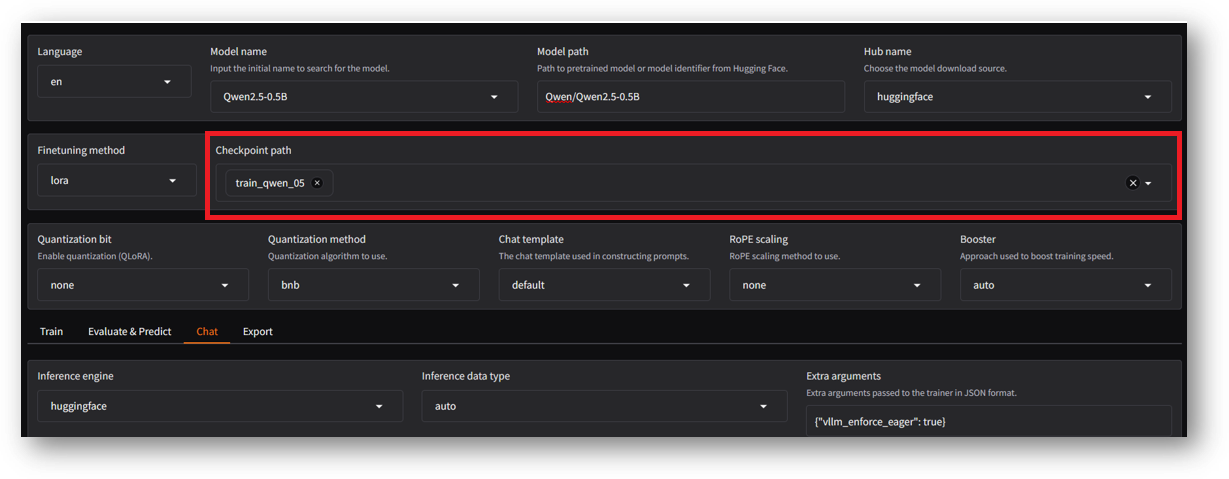
Now you can access the Chat functionality with the new train checkpoint. To do so, on same page of LLaMa Factory Web UI select Checkpoint path as highlighted in below screenshot. (It will be same as mentioned in the Output dir during fine tuning.)
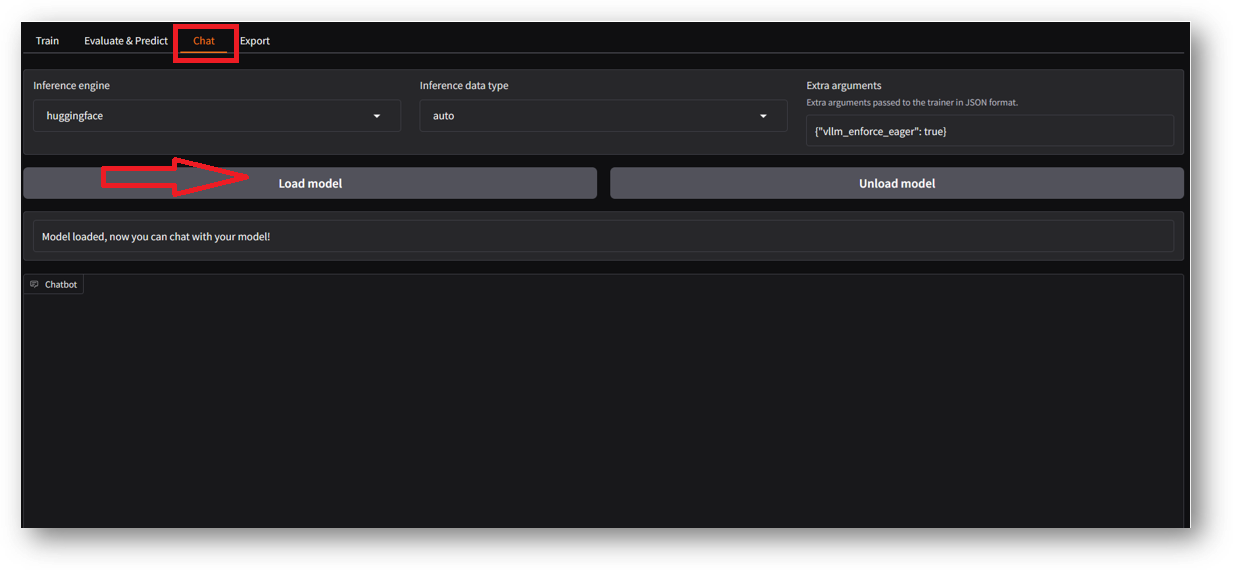
Navigate to Chat tab and click on Load Model button.
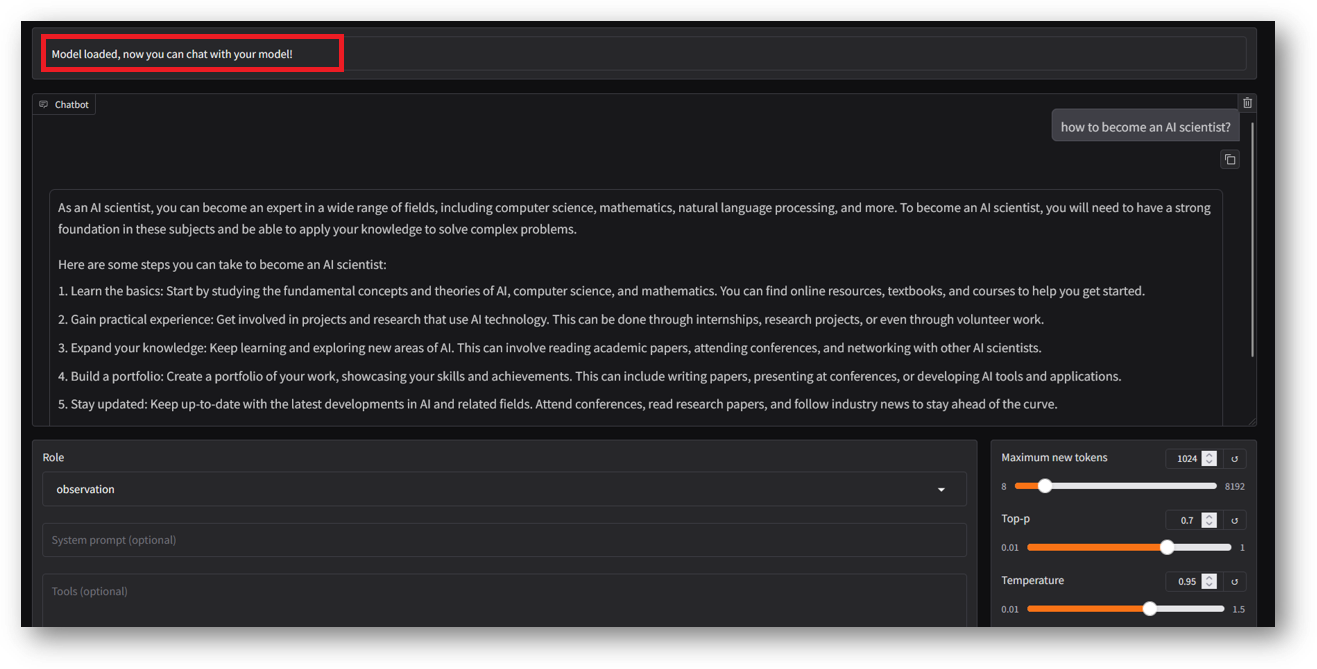
Once model is loaded successfully , you can run your queries.
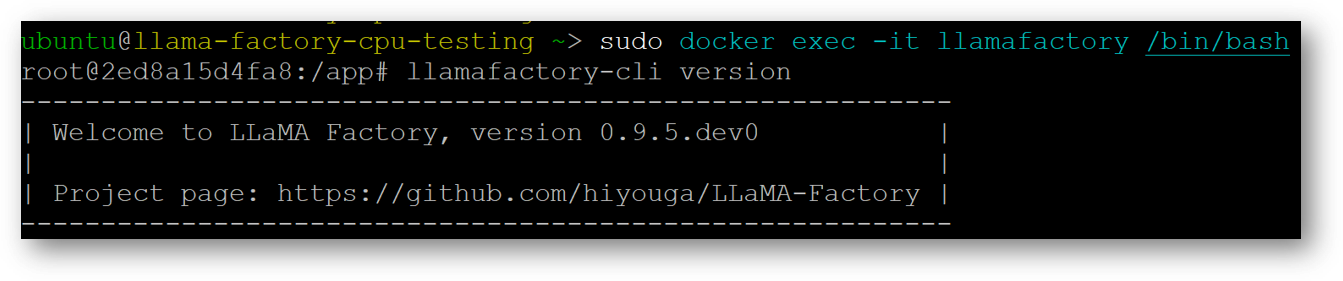
To access the LLaMa Factory CLI on this VM, connect via SSH terminal and run below command. This command will login you to LLaMa Factory container.
sudo docker exec -it llamafactory /bin/bash
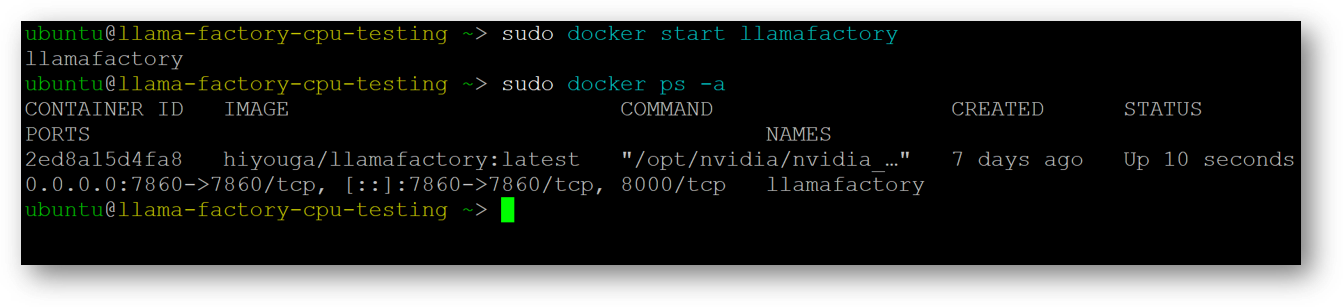
If above command fails then please check the status of running container using :
sudo docker ps -a
If you see the container is not running and in Exited state then restart it with
sudo docker start llamafactory
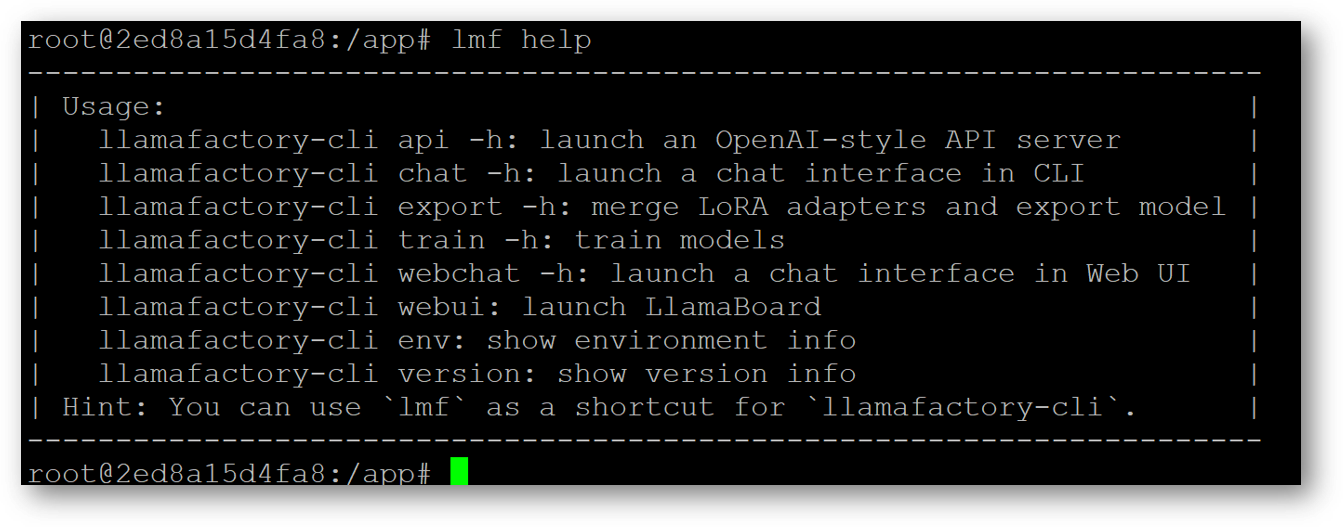
Inside container you can run various llamafactory-cli commands or you can use lmf as a shortcut for llamafactory-cli.