Setup and installation of Ubuntu 26.04 with GUI based Remote Desktop on AWS
This section describes how to launch and connect to Ubuntu 26.04 with GUI based Remote Desktop on Amazon Web Services (AWS).
Note : This offer is available on X86 and ARM64 Architecture. Select the solution as per your requirement and follow the below steps to provision and connect to it.
- Open Ubuntu 26.04 with GUI based Remote Desktop VM listing on AWS marketplace
Click here for Ubuntu 26.04 with GUI based Remote Desktop for ARM based CPUs
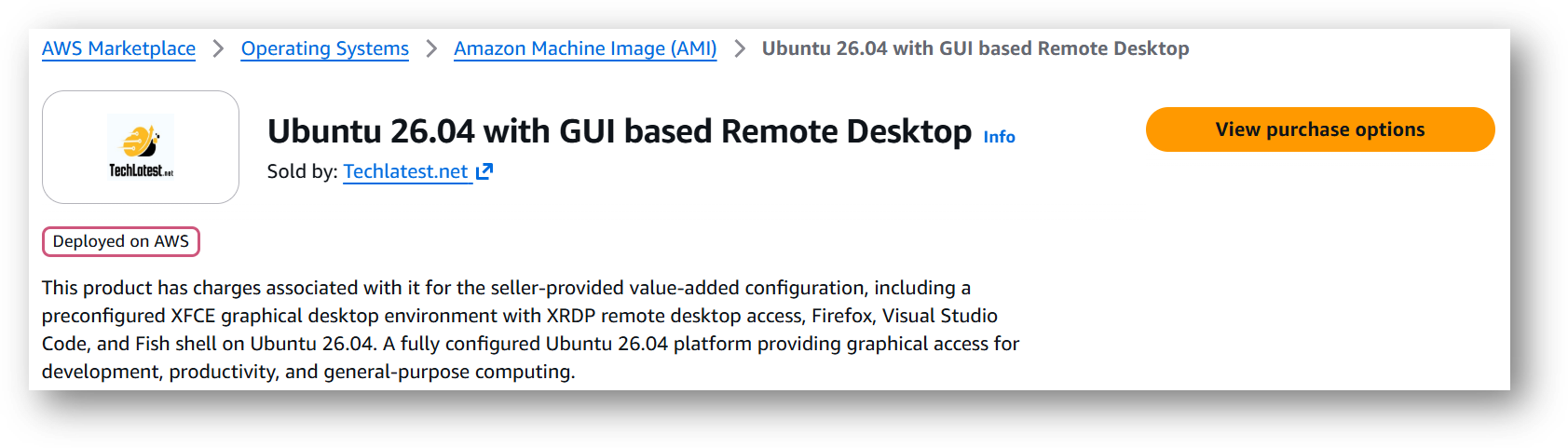
- Click on View purchase options.
- Login with your credentials and follow the instruction.
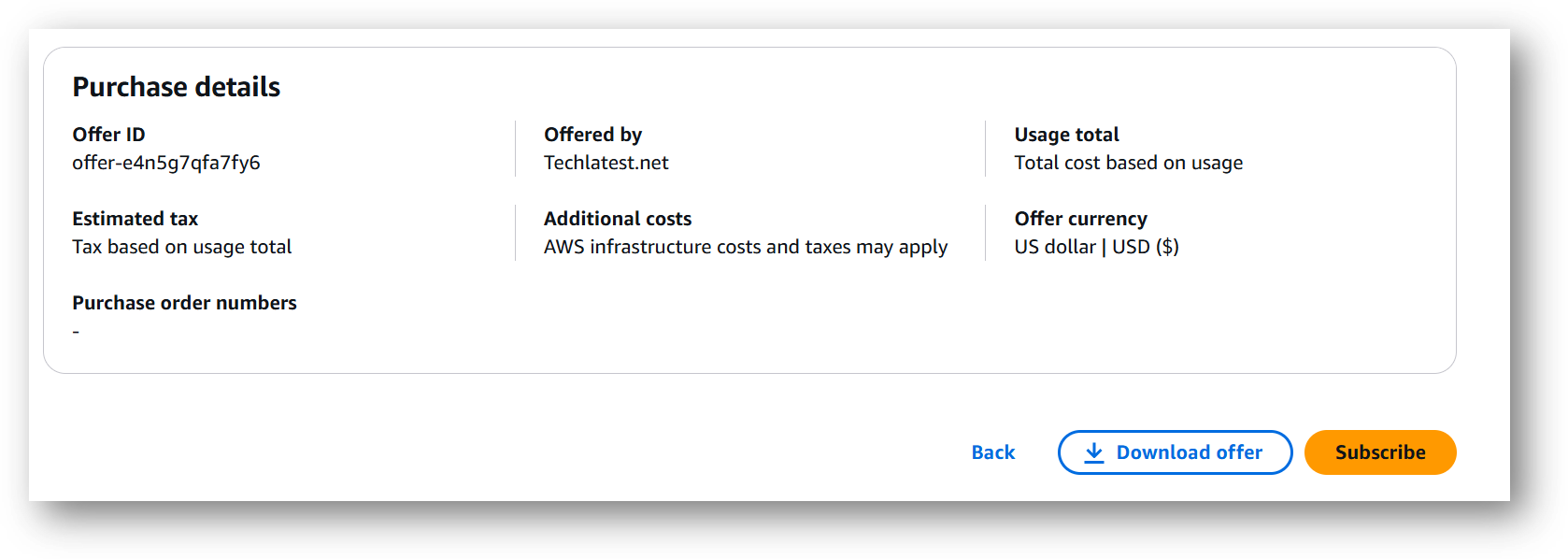
- Review the prices and subscribe to the product by clicking on subscribe button located at the bottom of this page. Once you are subscribed to the offer, click on Launch your software button.
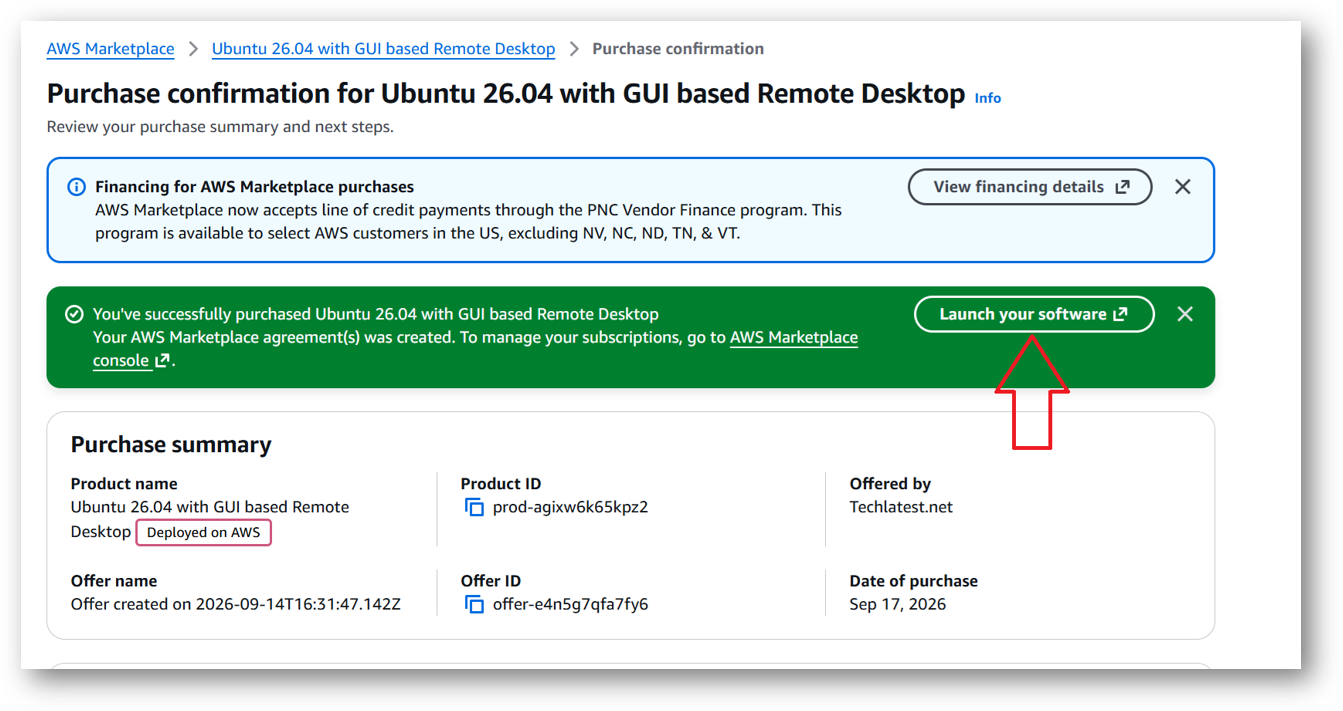
- Next page will show you the options to launch the instance, Launch through EC2 and One-click launch from AWS Marketplace. Tick the 2nd option One-click launch from AWS Marketplace.
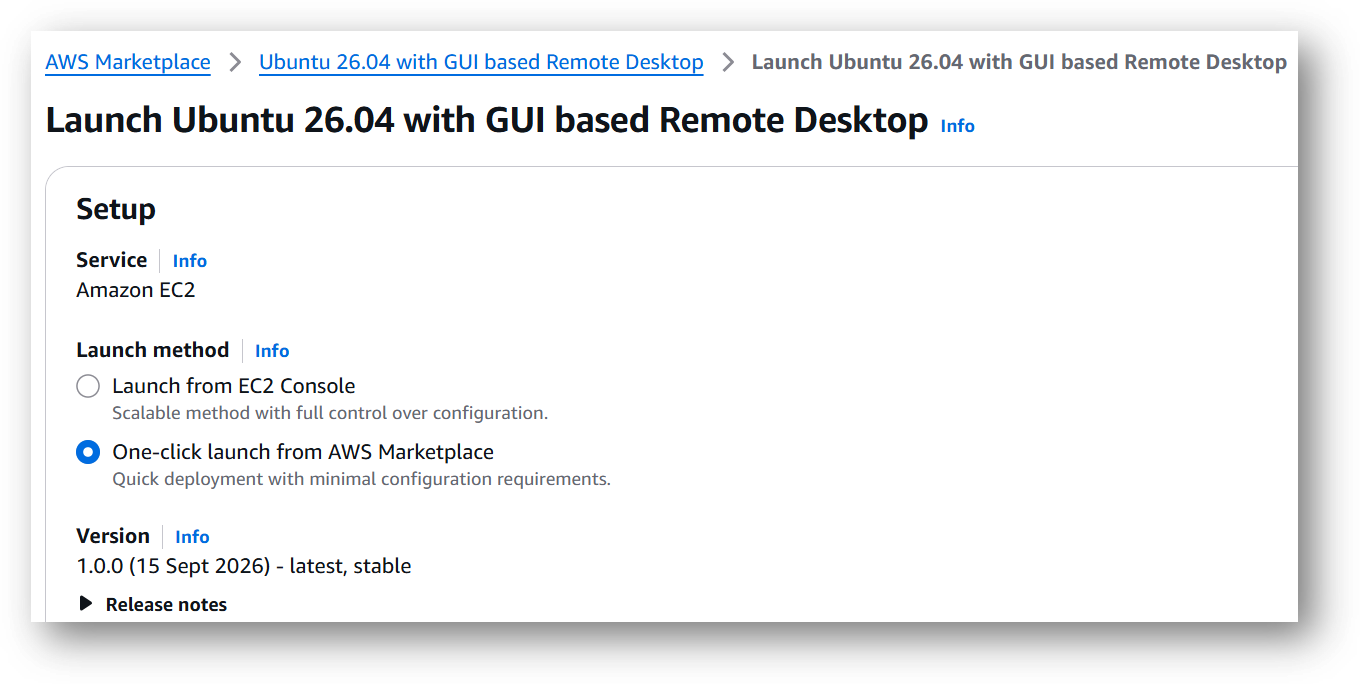
-
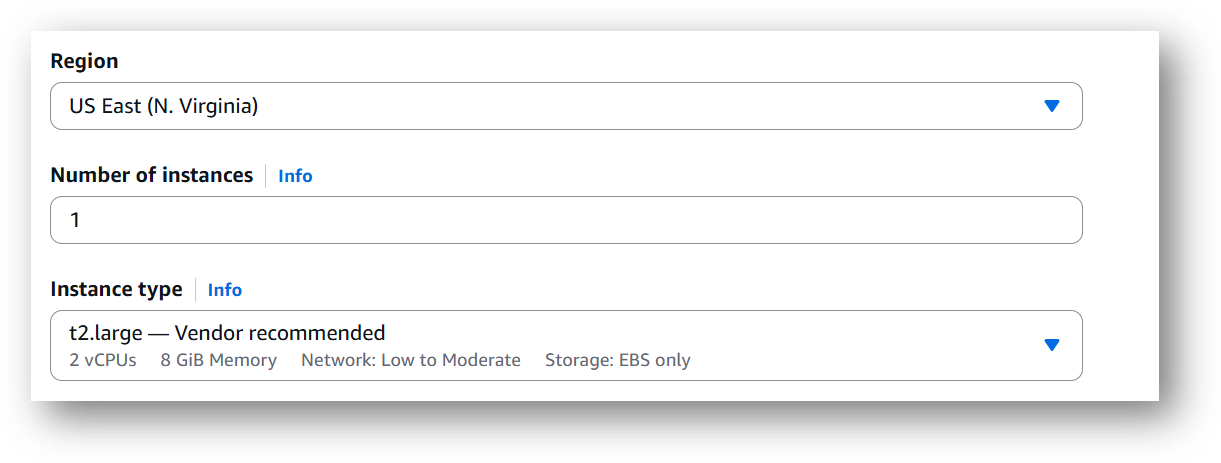
Select a Region where you want to launch the VM(such as US East (N.Virginia))
-
Optionally change the EC2 instance type. (This defaults to t2.medium instance type, 2 vCPUs and 4 GB RAM.)
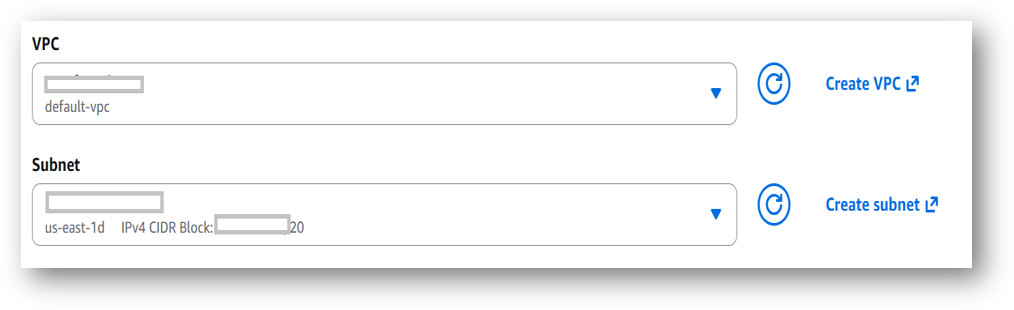
- Optionally change the network name and subnetwork names.
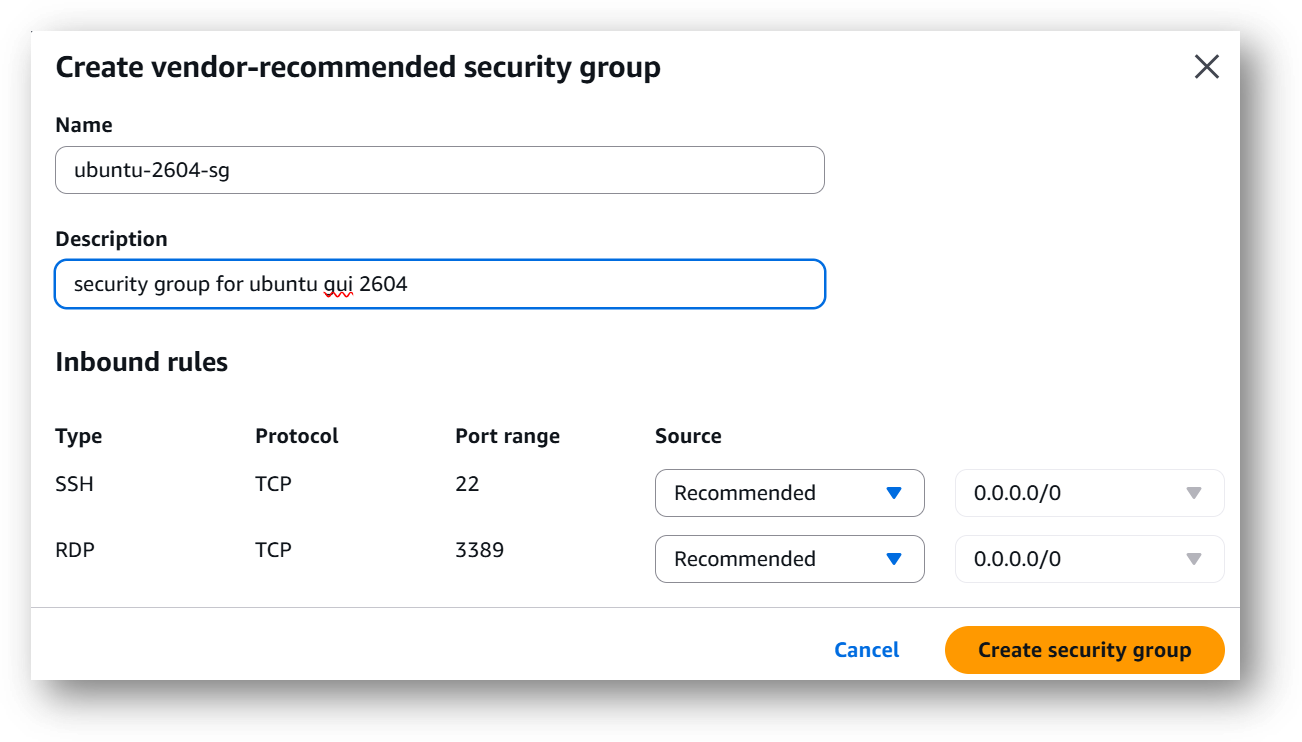
- Select the Security Group. Be sure that whichever Security Group you specify have ports 22 (for SSH) and 3389 (for RDP) exposed. Or you can create the new SG by clicking on “Create Security Group” button. Provide the name and description and save the SG for this instance.

- Be sure to download the key-pair which is available by default, or you can create the new key-pair and download it.
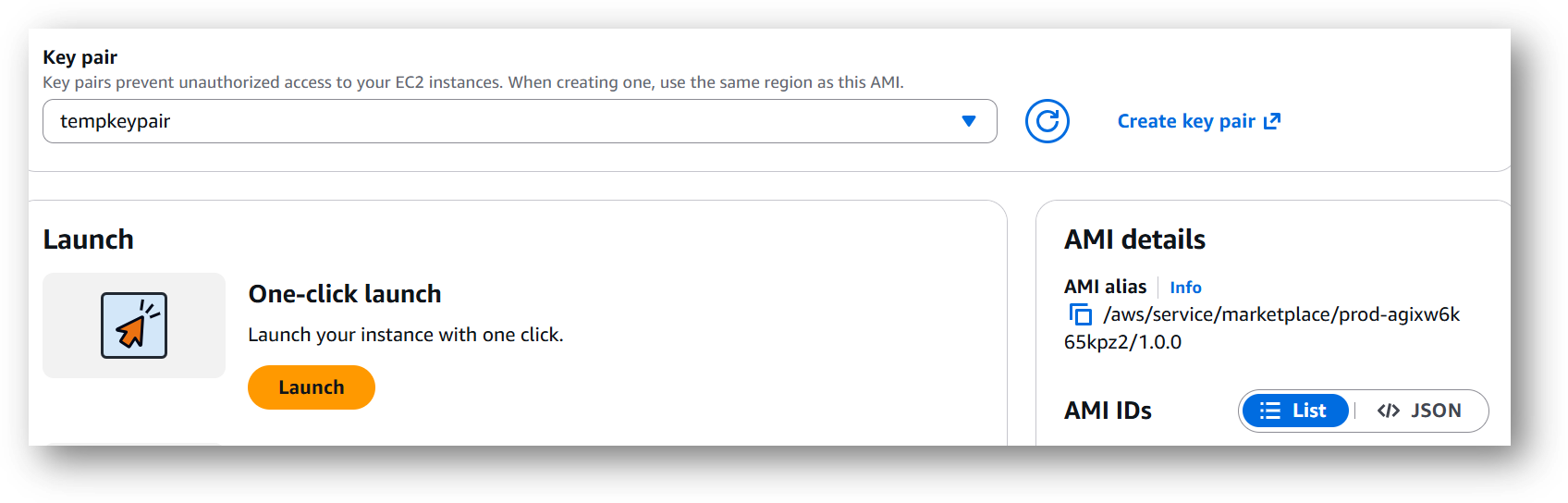
- Click on Launch..
- Ubuntu 26.04 with GUI based Remote Desktop will begin deploying.
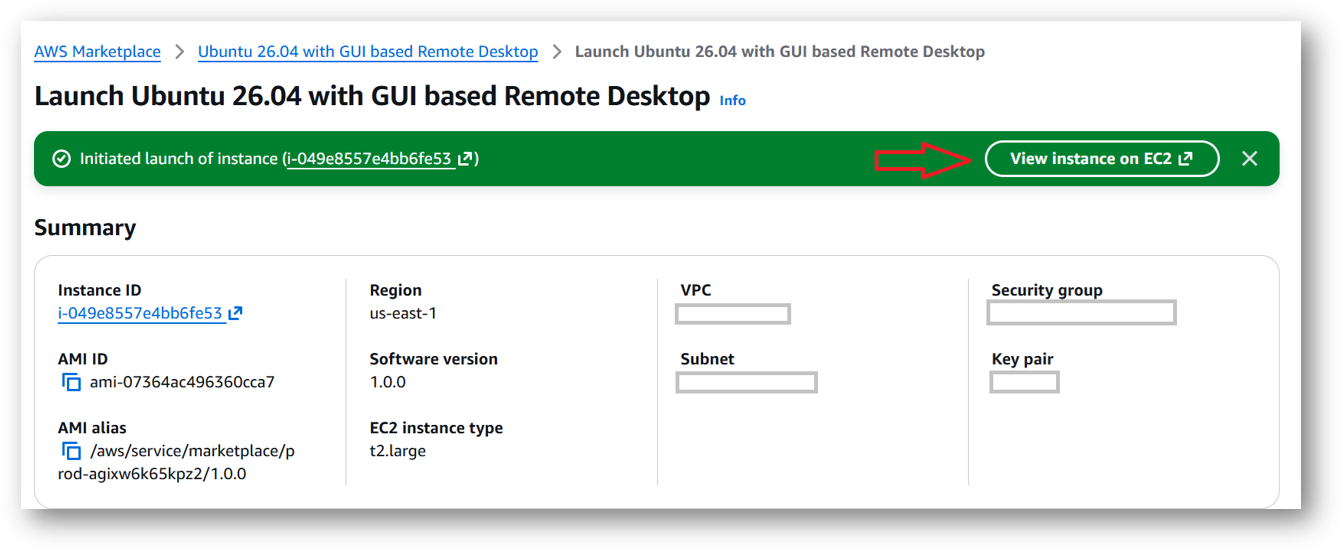
- A summary page displays. To see this instance on EC2 Console click on View instance on EC2 Console link.
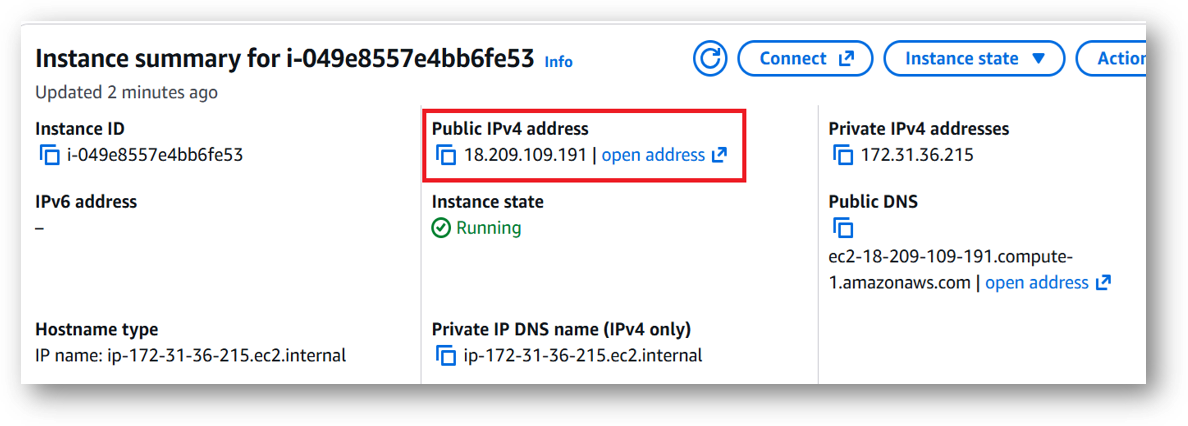
- On the EC2 Console page, instance is up and running. To connect to this instance through putty, copy the IPv4 Public IP Address
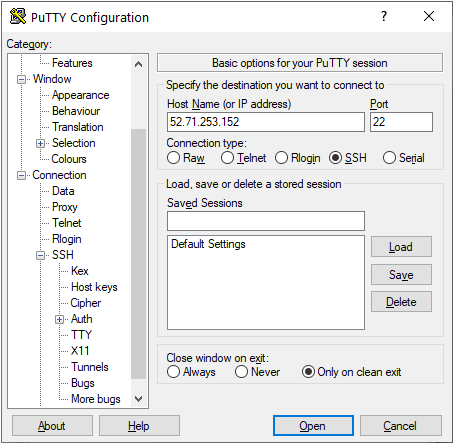
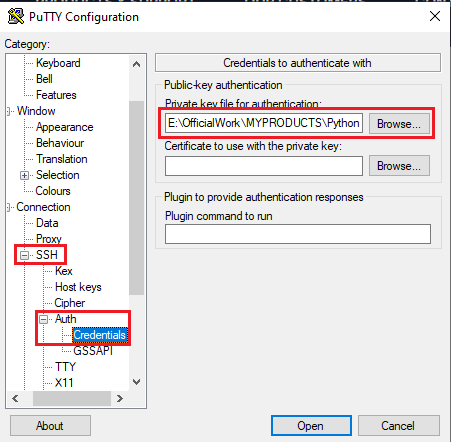
- Open putty, paste the IP address and browse your private key you downloaded while deploying the VM, by going to SSH->Auth->Credentials, click on Open. Enter ubuntu as userid
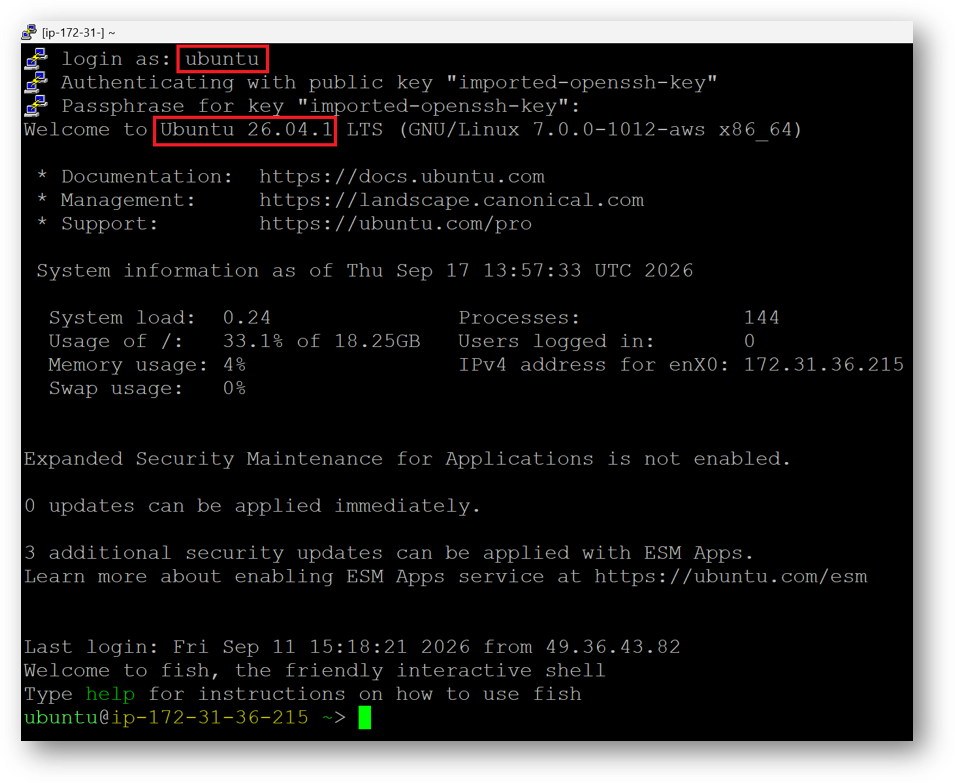
- Once connected, change the password for ubuntu user using below command
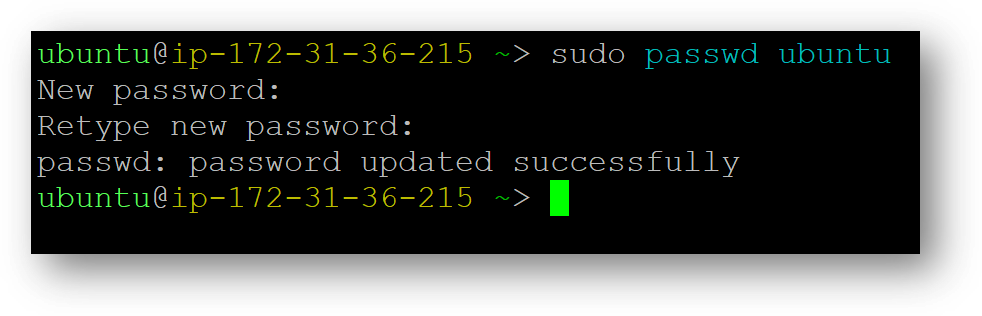
- Now the password for ubuntu user is set, you can connect to the VM’s desktop environment from any local Windows Machine using RDP protocol or Linux Machine using Remmina.
NOTE: If you want to add extra layer of security to your RDP session then please follow our RDP with Key Based authentication Guide
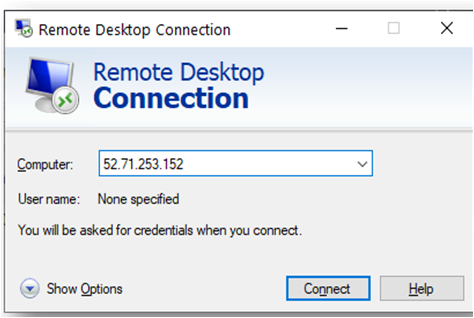
From your local windows machine, goto “start” menu, in the search box type and select “Remote desktop connection”. In the “Remote Desktop connection” wizard, copy the public IP address and click connect. Click “Yes” on certificate warning popup.
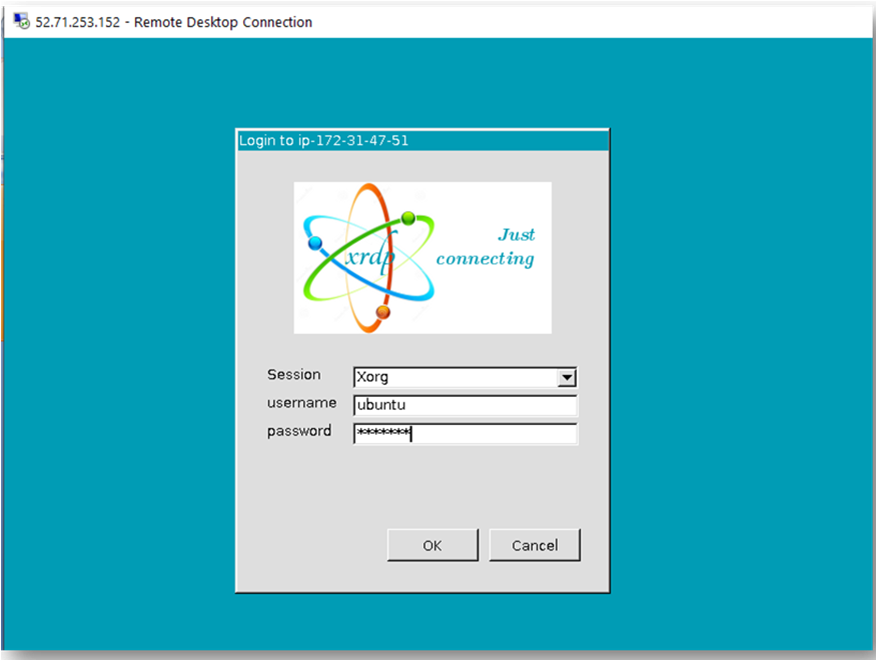
- This will connect you to the VM’s desktop environment. Provide the username (e.g “ubuntu”) and the password set in the above “Reset password” step to authenticate. Click OK
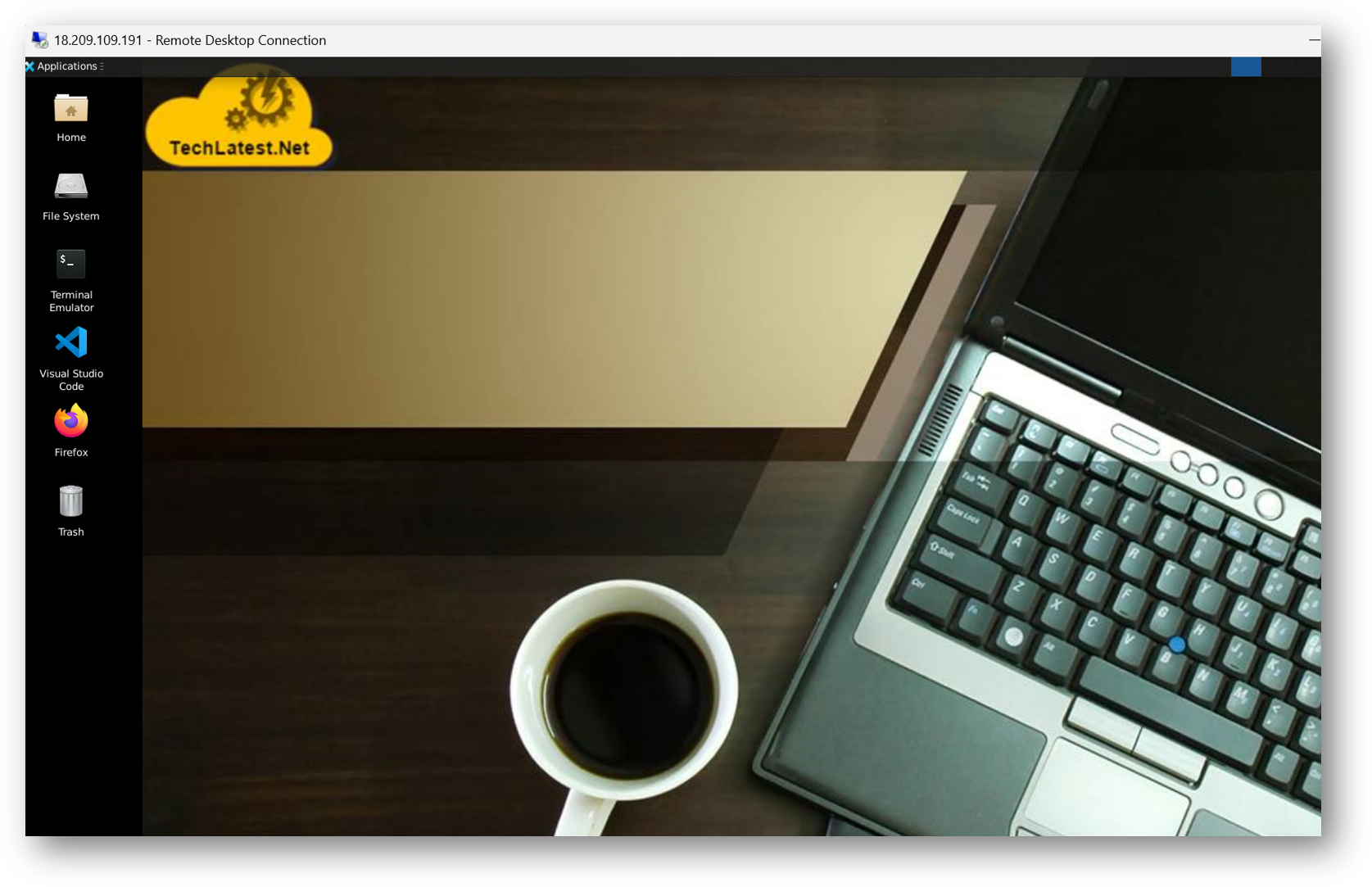
- Now you are connected to the out of box Ubuntu 26.04 with GUI based Remote Desktop environment via Windows Machine.
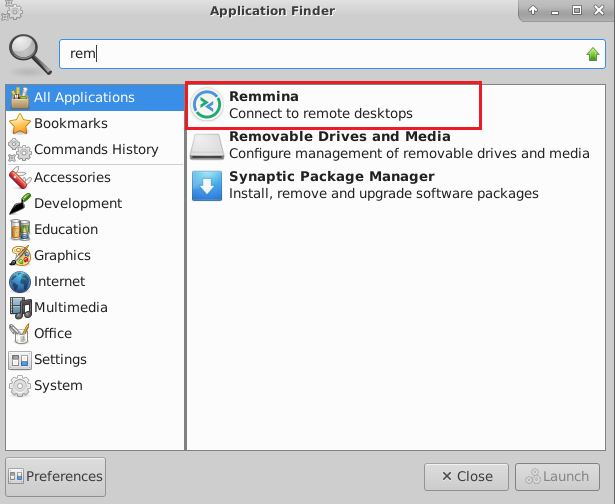
- To connect using RDP via Linux machine, first note the external IP of the VM from VM details page,then from your local Linux machine, goto menu, in the search box type and select “Remmina”.
Note: If you don’t have Remmina installed on your Linux machine, firstInstall Remmina as per your linux distribution.
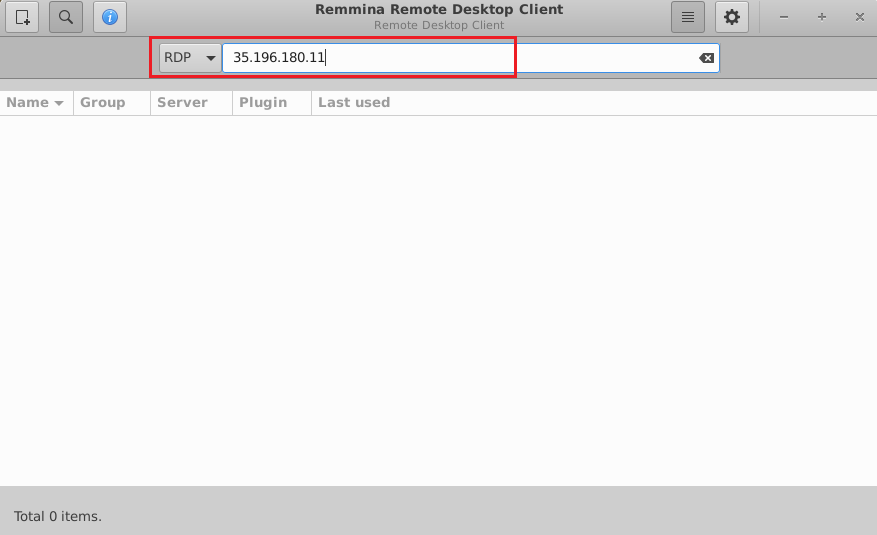
- In the “Remmina Remote Desktop Client” wizard, select the RDP option from dropdown and paste the external ip and click enter.
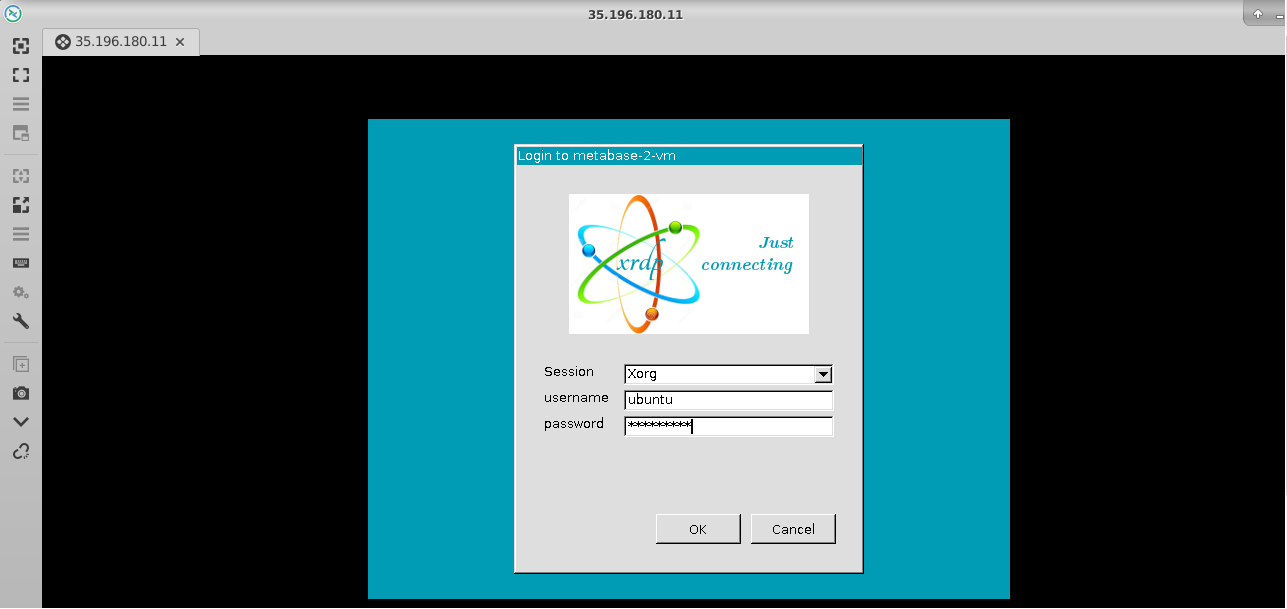
- This will connect you to the VM’s desktop environment. Provide “ubuntu” as the userid and the password set in above reset password step to authenticate. Click OK
- Now you are connected to out of box Ubuntu 26.04 with GUI based Remote Desktop environment via Linux machine.